DJI Neo 2 FPV Guide for Beginners – DJI Goggles and Motion 3 Controller

Check out the Best Deals on Amazon for DJI Drones today!
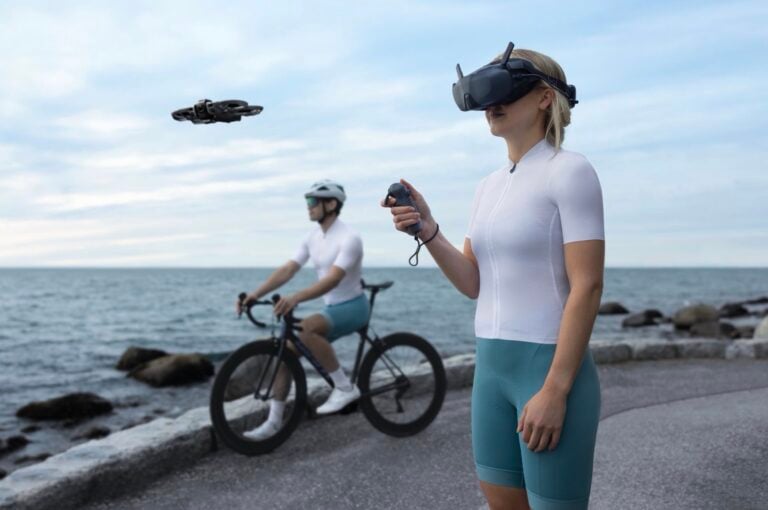
Good day, folks. Shawn here from Air Photography. A couple of weeks ago, I uploaded a beginner’s guide for the brand new DJI Neo 2. In that video, we mainly focused on basic functionality, using it autonomously and flying it with a traditional controller. Now, in this video, we’re going to focus on flying the DJI Neo 2 more FPV style, utilizing some of the FPV capabilities, flying it with goggles and the Motion 3 controller.

You can purchase the Neo 2 as a Motion Fly More Combo that comes with the drone, along with some spare batteries and a charging hub. It comes with the Motion 3 controller and a set of goggles. These goggles are the N3. Now, if you’ve purchased a different combo of the DJI Neo 2 and you don’t have the goggles or the Motion 3 controller, they can be purchased separately.
| DJI Neo 2 Combo | Price (USD) | Includes |
|---|---|---|
| Drone Only | $199 | Neo 2, battery, propeller guards |
| Fly More Combo | $349 | Neo 2, RC-N3, 3 batteries, charging hub |
| Motion Fly More Combo | $550 | Neo 2, Goggles N3, RC Motion 3, 3 batteries, hub |
Goggle and Controller Compatibility
I also want to mention here that the DJI Neo 2 is also compatible with the Goggles 3. These are more of a high-end set than the N3 goggles. So, if you are going to be purchasing a set of goggles for the DJI Neo 2, you have the choice of either. On top of that, if you don’t want to use the Motion 3 controller for flying and want a more traditional FPV experience, the DJI Neo 2 is fully compatible with the FPV Remote Controller 3. This can be bound to the aircraft as well.
Important: If you have purchased the Neo 2 as a standalone drone and you didn’t get it with a controller, you will have to purchase the Digital Transceiver module as this is required to connect to the Motion 3 and the FPV Remote Controller 3. This is a separate purchase, and you won’t be able to fly the Neo 2 in FPV mode without it.

Updating the DJI Neo 2 Firmware
Before we can fly the drone in FPV mode, we need to update the firmware on the drone, the goggles, and the Motion 3. I’m going to be demonstrating on my Goggles 3, but this works the same way with the Goggles N3.
Launch the DJI Fly app on your phone. What we have to do is plug our goggles with the included USB-C cable into our phone. I find it works best if you have the goggles powered off when you plug it in. On the Goggles N3, you would plug it into the USB-C port at the top. On the Goggles 3, you plug them into the bottom.
Power them on with a quick press and then a long press. You should get a notification on the screen right away that there’s some firmware that needs to be updated. You can see it’s saying it’s adding support for the Neo 2.
Before we start the installation, it’s a good idea to pair your Motion Controller to the goggles. If you bought them as a kit, most likely they’re already paired. If not, we have to do that manually.
Pairing the Motion Controller to Goggles
Power on the Motion 3 with a quick press and then a long press. To put it into pairing mode, press and hold on the motion controller until it starts beeping. That means it’s in pairing mode. Do the same for the goggles, press and hold on the power button, and they should pair automatically.
If your equipment is brand new and you tap on the firmware notification again, it will list an update for the motion controller as well. Tap on download, and it will update the firmware on both your goggles and your motion controller. It’s going to take anywhere from 5 to 10 minutes. It’s important not to turn the equipment off while it’s updating.
If you’re going to be flying with the FPV Remote Controller 3, you would do the exact same procedure, but instead of pairing the Motion Controller, you would pair the FPV controller. Press and hold the power button on both devices, and they will pair.
Binding the Neo 2 to Your Goggles
If you purchased your Neo 2 as a Motion Combo with the N3 goggles and the Motion Controller, you can skip this step as they’re already going to be bound together. However, if you purchased your Neo 2 separately and already own goggles, or you’ve purchased goggles separately, we need to bind the aircraft to the goggles.
Before you power on your Neo 2, make sure you have the Digital Transceiver module attached to the back as that will have to be attached in order to connect to the controller.
Before we can pair the drone to the goggles, we have to select the Neo 2 in the goggle settings. The goggles are compatible with many different drones, so we have to select the appropriate drone first.

Use the joystick button at the top of the goggles. Pull to the side to bring up the menu system. Select the very top option, press on the joystick, and find the drop-down menu where you can select what drone you want to connect. Select the Neo 2. Once selected, hit the back button to exit that menu.
Now power on the Neo 2 with a quick press and a long press. It will go through its gimbal calibration. Put the drone into pairing mode with a long press on the power button until it starts beeping. Do the same for the goggles with a long press on the power button. Everything should connect automatically.
Your First FPV Flight
For your first FPV flight, I highly recommend finding a nice open field with not a lot of obstacles or people. Also, make sure you research the rules and regulations in the country where you live.
Power on the drone and place it out in front of you on a pad. You don’t need a pad, but they come in handy for long grass, wet surfaces, or sand. You can take off from the palm of your hand when flying FPV, but it’s a good idea to have it out in front of you until you get your bearings.
Make sure you have satellite connectivity. You’ll know how many satellites you have by the icon in the bottom right corner of the goggle display. I had 16 satellites, which is more than adequate.
Motion 3 Controller Basics
Let me walk you through the controls on the Motion 3:
- Orange Button: Double press to start motors. Double press again to stop motors. Long press and hold to launch. Also serves as the brake button.
- Mode Selector Button: Switch between Sport mode and Normal mode. Press and hold for Return to Home.
- Joystick: Perform maneuvers and Easy Acro moves. Also raises and lowers altitude.
- Dial: Adjust settings.
- Trigger: Push in to accelerate forward. Pull back to reverse.
Flying with the Motion Controller
To maneuver the drone, it’s actually very simple. Pushing in the trigger moves the drone forward. Pulling back on the trigger moves the drone in reverse. To raise and lower altitude, tilt the controller up or down while flying.
For turning, just turn the controller from side to side. If you want to go left, move it left. If you want to go right, move it right. You want to avoid tilting the controller, many people try to turn that way and it will turn a little, but that’s not really the movement. Just go side to side for the most precision.
You can use a combination of all three maneuvers. Point the crosshair and circle in your goggle view where you want to go, and the drone will follow. It’s very easy and fluid. DJI did a really incredible job with this.
The farther you press the throttle in, the faster the drone goes. It works just like an accelerator on a car.
The obstacle avoidance will prevent you from bumping into stuff in Normal mode. You can see it won’t let you hit trees. However, in Sport mode, obstacle avoidance is disabled, so you have to be more careful.

Goggle Display and Settings
Inside the goggles, you have a virtual pointer to adjust settings. Tap on the side to bring up all your settings, or tap at the top for quick options like defogging.
Down at the bottom, you can see all of the telemetry: height, distance, speed, and the current speed mode. There’s also battery information, RC signal strength, video transmission strength, obstacle avoidance status, and satellite count.
In the safety settings, you can set your max flight altitude (maximum is 120 m/394 ft), distance limits, and Return to Home altitude. You can also calibrate compasses if you get any error messages.
Using Return to Home
The Neo 2 has a virtual home point displayed with an H in your goggle view. When you’re flying and get disoriented, just follow that H to get back. When the battery gets low, the drone will automatically return home just like any DJI drone.
You can also press and hold the Return to Home button on the Motion Controller. Just be careful because the obstacle avoidance can’t see really thin branches. On trees where the leaves have fallen off, there’s potential it could fly into thin branches. Be prepared to hit the brake button if needed.
Landing Options
You can use the joystick to raise and lower altitude. Press down on the joystick, and the drone will go into its landing mode. But the easier way is just putting your hand under it. Just like when using it autonomously, it will detect your palm and land right in your hand.
Easy Acro: Flips, Drifts, and Slides
Easy Acro allows you to do some interesting maneuvers such as flips and rolls, and it’s a lot of fun. But I would probably wait to start doing that until you have a little bit of experience.
To enable Easy Acro, tap at the top of the goggle display. Toggle on the Easy Acro option (it will be highlighted in yellow). You’ll notice a new menu appears at the side with options for Slide, Drift, and Flip.
Flip Mode: Use the joystick to perform flips. Press up, and the drone flips forward. Press down, and it flips backward. Press to the side, and the drone does a barrel roll. You can do this while flying as well.
Drift Mode: This allows the drone to perform a sliding turn. It just drifts and then starts flying in a new direction, even backwards. You can get really creative with this and drift through little openings.
Use the dial on the side of the Motion Controller to switch between the different Easy Acro modes.
Final Thoughts
The DJI Neo 2 is an incredible little drone for getting into FPV flying. With the Motion Controller and goggles, it becomes an entirely different experience from flying autonomously. The controls are intuitive, pointing where you want to go makes sense, and the more you fly, the more comfortable you’ll get.
I couldn’t cover everything in this video. There’s a lot to the Neo 2, especially with FPV capabilities. So, if this is a drone you’re interested in, make sure you’re subscribed as I will be covering it fully. We’re going to dive deeper into some of the specific features, tutorials, and different tips and tricks.
What questions do you have about flying the DJI Neo 2 in FPV mode? Let me know in the comments below.
Discover more from DroneXL.co
Subscribe to get the latest posts sent to your email.
Check out our Classic Line of T-Shirts, Polos, Hoodies and more in our new store today!

MAKE YOUR VOICE HEARD
Proposed legislation threatens your ability to use drones for fun, work, and safety. The Drone Advocacy Alliance is fighting to ensure your voice is heard in these critical policy discussions.Join us and tell your elected officials to protect your right to fly.

Get your Part 107 Certificate
Pass the Part 107 test and take to the skies with the Pilot Institute. We have helped thousands of people become airplane and commercial drone pilots. Our courses are designed by industry experts to help you pass FAA tests and achieve your dreams.

Copyright © DroneXL.co 2026. All rights reserved. The content, images, and intellectual property on this website are protected by copyright law. Reproduction or distribution of any material without prior written permission from DroneXL.co is strictly prohibited. For permissions and inquiries, please contact us first. DroneXL.co is a proud partner of the Drone Advocacy Alliance. Be sure to check out DroneXL's sister site, EVXL.co, for all the latest news on electric vehicles.
FTC: DroneXL.co is an Amazon Associate and uses affiliate links that can generate income from qualifying purchases. We do not sell, share, rent out, or spam your email.