DJI Goggles & Motion Controller Support FINALLY Added For Mavic 3 & Mini 3 Pro!

Check out the Best Deals on Amazon for DJI Drones today!
What’s going on, guys? Billy here, and this is an exciting video to make because we finally have DJI Goggle support for DJI’s GPS line of drones, specifically speaking, their Mavic 3 line as well as the DJI Mini 3 Pro.

Now, to get specific, the DJI Goggles Integra, DJI Goggles 2, and DJI RC Motion 2 are the only peripherals being added for support with the Mavic 3 line and the Mini 3 Pro. This means that your larger FPV goggles and the original motion controller will not be compatible. I know this isn’t ideal because so many people out there are still using the original motion controller and some people are probably still using the FPV Goggles Version 2 from DJI. But you’ve got to understand that these newer peripherals and accessories have been upgraded so that they can take advantage of all the features that DJI’s GPS drones offer.
For example, the Goggles 2 and Goggles Integra have an overhauled user interface that can connect directly with the DJI Fly app and support all the little features that these GPS drones have available. The Motion Controller 1, on the other hand, gives the user very few options in controlling the drone other than the actual motion of the controller. The Motion Controller 2 has the ability to reverse, use the joystick to move around, and change camera settings with the wheel on the side.
Now, in terms of pairing the goggles to your drone, within the Goggles 2 or Goggles Integra, you’ll have to go to the status section within the menu screen and switch your connection to the drone that you’re using, such as the DJI Mini 3 Pro, DJI Mavic 3 Classic, or DJI Mavic 3 Pro. Just choose the drone that you’ll be connecting.
Once you’ve told your goggles which drone you want to pair them with, you’ll then have to establish that connection. On the Goggles 2, you’ll use the pairing pin or the pairing button, and on the Goggles Integra, you’ll hold down the power button until you hear a beep. Then, on the drone, hold the power button; once you hear that beep, they should pair almost instantly.
Now, if you plan on also using the motion controller, you’ll have to pair that as well by holding the power button on the drone until you hear a beep and then hold the power button on the RC Motion 2 until you hear a beep. Both should bind within seconds. Basically, the way it works is both of these accessories have their own independent connection to the drone you pair them with, but you need to make sure you pair the goggles first and then the RC Motion 2 because if you don’t pair the goggles, the RC Motion 2 will just sit there and beep until the goggles have been paired.

Which DJI drones are compatible?
Now, probably the most important piece of information is compatibility, right? So which drones are not compatible with which accessories? We also need to make sure that the firmware is updated on all of these accessories that we’re using because, remember, DJI’s GPS drones couldn’t connect to their goggles; they were only made to connect with their FPV drones. So, in order to even establish that connection, we need to be on the newest version of the firmware.
To quickly illustrate this compatibility and the different updates that have come with these new firmware versions, I’ve put together this graphic. You can go ahead and screenshot this if you want so that you can save it to your phone and look at it later because now we’re going to get into the actual flying of our drone – the fun part of the video.

Alright, so I figured we’d break this up into two different sections: first, we’ll fly the DJI Mavic 3, and then we’ll fly the Mini 3 Pro. I’ve got the Mavic 3 Classic, to be exact. Now, really quickly, I just want to share with you some things that you should look for in the goggles when flying your GPS drone with the motion controller and the goggles.
First, if we go into our menu, go down to the settings, and then go down to the camera, all of our advanced camera settings are here. We can change the video quality, the frame rate, choose our video format, and even choose the codec in here, right – the video coding format. So, all that stuff you’re used to in your GPS drone is here.
I also want to mention that if we go up to control and tap on motion controller, we want to go over to gain tuning, and from here, change your speed because, right out of the gate, your max lateral flight speed is set all the way down to one mile an hour. It is very slow. So, jump in here, change your speeds, figure out what you want, and you’ll see why that’s important when we actually get up in the air.

Okay, so going back to our main flight screen, we’ll go ahead and take off. Let’s see, I’ve actually got to look here. To take off, the motor starts, and we’ll go ahead and take off with the joystick by pushing up. Whoa, okay, now we’re looking around. Alright, so we’re taking off. I’ve got to remember that this isn’t a DJI Avata; I’m going to remember this is a GPS drone. So, as we’re up in the air here, and if we look to the left and to the right, it actually stays locked to the horizon. It’s a little bit of a weird experience here, but we’ll go ahead and rip on down the water, per usual.
You cannot use the goggles and the DJI RC Pro at the same time
Now, when I initially wanted to try this out, I thought that I could use the goggles just as a screen and then also fly with a regular controller, but you can’t, and I’m kind of upset about that. I wish that you’d be able to use the RC Pro and fly around, just using these as a screen, but I hope that this feature comes in a future firmware update.
Okay, so we’ll go ahead and pull up a little bit here. Again, I’ve got to remember that the horizon isn’t locked; it does bank with the drone. I wonder if you can change it so that the horizon is always locked, but then again, you’re using it like an FPV drone; you want it to feel like an FPV drone. Alright, now let’s go ahead and flip into sport mode. Oh, that was pause; we’ve got to hit mode. There we are, sport mode. So now we’re going to be able to fly much faster.
I’ll tell you what, if you put the goggles on and I didn’t tell you which drone you were flying, you’d probably be hard-pressed to know which one it is. The only reason that I can really tell that this is a Mavic 3 is because the camera quality is insane. The camera quality looks so much better than the Avata, and you don’t have that wide field of view. Alright, let’s bank and turn around; we’ll bring it back.

Now, I guess this also doesn’t feel as fast as using the DJI Avata, but I mean, right now, we’re ripping at 47 miles an hour. I’ve said it before, and I’ll say it again: the motion controller is always kind of looked at as an add-on. Some people might say, “Why would you want to use the motion controller over a regular controller?” But this is fun. This definitely adds a different dynamic, and if I handed someone who has never flown a drone before the motion controller, I think they’d find this more intuitive than, say, a regular controller.
I’m going under the bridge, by the way. Am I? I don’t know. I’m not going to be able to dive down fast enough. Can we make it? Can we squeeze it? I wanted to go faster, but we’ll just have to do it nice and slow. There we are. Now, I do not want to face the consequences if I crash this drone, because with the Avata, I could just put it into turtle mode, have it flip over, dust it off, and start flying. But the Mavic 3 is going to be a different story, where we might have to replace some components.
Oh, we’ve got the train coming! We’re not going to be able to catch it; we’re not going nearly fast enough. But we’ve got the train going down; that’s nice. Again, I wonder if we’re going to be able to utilize keeping the horizon level straight. For example, this is something that some people were bringing up: you could actually do an orbit, theoretically.
So, let’s actually fly on down to the hotel here, and we’ll use a little bit of that joystick, right? Because, right now, the way that I’m flying is I’m using my motion controller to move back and forth. I’m squeezing the trigger, and I come and fly down here. Let’s say we have this building here; if I wanted to do an orbit, theoretically, I could stop the drone, I could use the joystick, bank right, and keep moving. See? Yeah, you can orbit, but it doesn’t feel intuitive, I’ll say that. Yeah, and you’ve got the gimbal banking, man. Let’s look at that. The camera on the Mavic 3 is so good! I mean, we’ve got good light here, but that’s just great.
Alright, let’s move this way. Let’s fly down this way, let’s fly up. See, you wouldn’t get that ticking because the gimbal’s trying to act like an FPV drone on, say, the Avata, or on this drone that’s trying to act like an FPV drone. On the Avata, you wouldn’t get that ticking. Like here, I can’t look up anymore because that gimbal is hitting its endpoint. I can look a little bit up, like that, but yeah, so the gimbal is trying its best to mimic being an FPV drone. Bank around here.
So, this will be cool for somebody that owns both. Like, I would say, if you own a DJI Mavic 3 and you want to experience the motion controller, it could be fun. But again, something I was really looking forward to is being able to use the goggles with my regular remote controller and just use these as a screen. Hopefully, that comes in a firmware update.
Now, another cool thing with the RC Motion 2 here is, if we come to a stop, we can actually reverse, right? So, remember, we can push this little thing backwards and go up. So, we can go like backing up. You can almost do a little dronie shot here. Look at that, looks nice! Sweet, and again, this is all with the motion controller. It’s probably not going to be the smoothest, and I wish I could frame it up a little bit better, but hey, that works.
Alright, let’s come on back down. We’ll dive down. Let’s see how fast we dive straight down. Yeah, look at that, we can dive down about 13 miles an hour. I just can’t get over the colors; like, usually, I’m used to looking through the FPV camera, which is just, I mean, it’s good, but it’s not the best. But the colors are just exploding off the screen from this drone. Let’s pull it back up, nice. Bank down around, let’s go into the bridge one more time, and then we’ll pull up the DJI Mini 3.
Definitely getting a little bit more confident here. It’s so funny, like when I first flew with the motion controller, I remember saying to myself, “Oh, this controller is okay, it’ll be kind of fun to fly with, a different experience,” and then, by the end, I was ripping around trees. The one thing to get used to, though, with this drone is that it doesn’t have as wide a field of view, so it’s a little bit tighter when you’re using the motion controller, just something to note. Alright, so let’s bring this drone on back. We’ll fly around back.
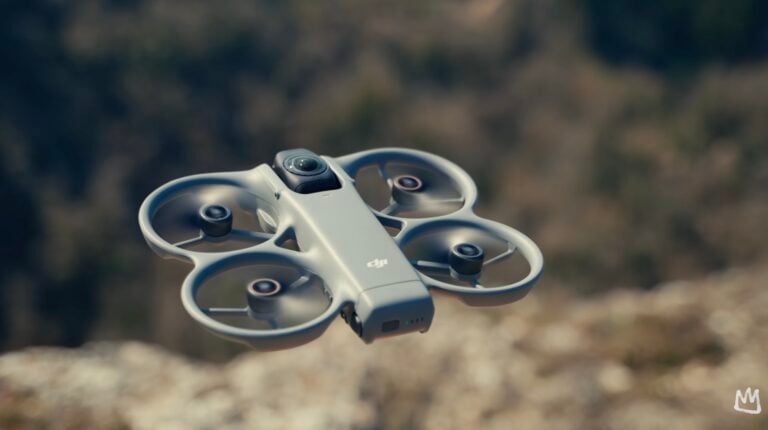
DJI Mini 3 drone with the DJI Goggles
Okay, now it’s time to fly the Mini 3 Pro. Jumping into the goggles here, we’ll go ahead, double press, arm our motors, zip on up, and there we go. We will begin our flight down the water. Now, really quickly, let’s see if I can do this. Go to the settings, can I change it mid-flight? If we go down to camera, no, it’s control, gimbal mode right here. We can flip this to follow mode. I wonder, yeah, see, so now as I bank around and move around, it doesn’t fly like an FPV drone, it flies like a GPS drone. I probably just made everybody sick. I actually made myself sick during the goggles, spinning around like that. But now we’re flying in follow mode, so this is going to be a little bit different than our previous flight.
Let me flip on over to sport mode. Here we are. I also want to point a few things out. So, down in the bottom right corner, something that they show is your obstacle avoidance status. So, right now it’s red because we’re in sport mode, but just know that when you’re flying with the RC Motion 2 and if you’re in normal mode, that obstacle avoidance will still work. So, on the Mini 3 Pro, we’ve got forward and backward obstacle avoidance, as well as a downward set of sensors. But on the Mavic 3, we have omnidirectional obstacle avoidance, so really, that could be the safest drone to fly around with, as it’s got all those sensors.
Alright, right off the bat, I don’t know how I feel about follow mode when I’m using the goggles and the motion controller. I really want to be immersed, I really want to feel like I’m banking as I move. It almost doesn’t feel right. I’m actually just going to go ahead and switch that again. So, we’ll go to the settings, control, gimbal mode, FPV mode, boom.
Okay, so it’s been established personally that I enjoy using, yeah, see, I enjoy using FPV mode a lot more when flying with the motion controller. Let’s go on under the bridge. Now, you know what, let’s split the bridge. Ah, there are some wires, though. Nah, we’re going to go under the bridge. Sorry, guys, I let you down. I was going to go through the bridge, but there were some wires there.
Experiencing a little bit of breakup under there. I will say that this drone, the Mini 3 Pro, this is fun, don’t get me wrong, like the motion controller is a blast. But the Mavic 3, with its vertical speed, like it can ascend at 17 miles an hour and descend at 13 miles an hour, I mean, that drone is an all-out beast. And don’t even get me started on the DJI Avata, because that drone is even more nimble and quick. So, the nimbler the drone, the more fun the RC Motion 2 is. We’re going to bank around, let’s come whizzing right by, there we are, it’s like a bullet.

I couldn’t even imagine that was the Mavic 3 or the DJI Avata. Oh gosh, and the camera isn’t as good as the Mavic 3, but this camera blows away the Avata’s camera. So, you can just see the colors and the dynamic range. Again, in the goggles, it feels like it’s exploding off the screen in here. Let’s go down over the train tracks; that’s something we didn’t really explore.
See, right now, while I’m banking, I’m almost a little bit worried because I don’t know what’s to my right. The wider field of view on the Avata definitely makes you feel more safe or secure when you’re banking from left to right. But with the Mini 3 and the Mavic 3, because you have such a tight field of view, as I’m banking to the right, there could be a tree there that I run into. You’re just not as aware of what’s to the sides.
Now, remember from here, we can—oops, ah, sorry about that, guys—accidentally stopped recording. That’s the one thing I noticed when flying with the motion controller: where the record button is down here, where I hold my thumb, I accidentally press it all of the time. That’s quite annoying, but at least I caught it and didn’t stop recording for the rest of the video.
So, if we stop here, you know, of course, if we kind of came to a standstill, we wanted to, we could use the joystick here to move left and move right, and then we can move up, right, and we can move down. So, there is that option. Like, if we want to do a reveal shot here of Manayunk using the motion controller, we could bring the drone down, using the joysticks, and fly straight down. Then we could accelerate a little bit, push the joystick up, and then look down.
This is my first reveal shot with the motion controller. That’s actually pretty intuitive. Like, if I feel like if I practiced this, because this is my very first time ever trying to do a reveal shot—because we haven’t been able to use the motion controller with a GPS drone—like, that was pretty good. I’ll take that. I will absolutely take that as my very first time trying to get a reveal shot.
Now, does it feel more comfortable on the sticks? Absolutely. Like, using my regular drone remote, that would be 10 times better. But this is my first time actually trying it, and I’ll have to say it was definitely intuitive. Let’s try it again. I want to try it again. I’m going to bring the drone down, look to the right a little bit, there we are. I’m going to accelerate forwards, push the joystick up, and use—and remember, we’re in the FPV gimbal mode, so it’s not going to be perfectly level. The horizon is pretty good. I’ll give it a little bit more acceleration.
The thing is, when you’re trying to do these reveal shots, right, and you’re coming up and over, you know immediately, “Oh man, I need a little more altitude,” or, “Oh, I need to pitch the gimbal down a little bit faster.” So, it’s just muscle memory. As you’re compensating for one movement, you can easily go and make the other movement. But my brain, because it’s not wired to use the RC Motion yet, is kind of like, “How do we do this, right?” Like, “Okay, we’re going a little bit too fast forward, so now we need to pitch the gimbal down.” Well, it’s not a wheel; you actually need to look down and angle the remote, so it’s just a little bit different. I would try it again, but I don’t want to bore you guys. I’ll practice more in my off-time.
Let’s go and zip by us again, fly on up. There we are. I hope the microphone picked that up; it sounded pretty cool. All right, so I think that this is going to pretty much wrap up our video here. Let’s bring this drone in and land. I’ll kind of show you guys the process for landing one of these things with the RC Motion when you’ve got the GPS drone. It’s kind of the same as with the Avata, right? It’s obviously a little bit more complex than just being able to bring it back using your sticks on your drone, but you want to fly kind of directly over yourself, like that, and then point the camera straight down, like this.
We want to move a little bit forwards, actually. Let’s move a little bit forwards and look straight down. That little AR icon right there, you want to bring your circle to highlight it, and then land. So, land like this, and that’s how you know the drone’s coming down. That little point right there is going to show you exactly where the landing point will be for the drone. And I’ve noticed sometimes it doesn’t want to land, so from here, it’s nice to have the joystick because you can just push the joystick down and bring the drone down to land. There we are.
All right, so first two flights using GPS drones are now under our belts. DJI, if you’re listening, I really wish I could use these goggles and also fly with my regular remote controller. On a day like today, where it’s super bright outside, it would be so nice to be able to throw the goggles on and fly that way because it would give me a better understanding of what I’m looking at as I’m moving around capturing photos and videos. Anyway, thank you guys so much for watching. Let me know your thoughts on the RC Motion 2 compatibility with these new GPS drones, and as always, I’ll talk to you later. Peace!

Check out our Classic Line of T-Shirts, Polos, Hoodies and more in our new store today!

MAKE YOUR VOICE HEARD
Proposed legislation threatens your ability to use drones for fun, work, and safety. The Drone Advocacy Alliance is fighting to ensure your voice is heard in these critical policy discussions.Join us and tell your elected officials to protect your right to fly.

Get your Part 107 Certificate
Pass the Part 107 test and take to the skies with the Pilot Institute. We have helped thousands of people become airplane and commercial drone pilots. Our courses are designed by industry experts to help you pass FAA tests and achieve your dreams.

Copyright © DroneXL.co 2026. All rights reserved. The content, images, and intellectual property on this website are protected by copyright law. Reproduction or distribution of any material without prior written permission from DroneXL.co is strictly prohibited. For permissions and inquiries, please contact us first. DroneXL.co is a proud partner of the Drone Advocacy Alliance. Be sure to check out DroneXL's sister site, EVXL.co, for all the latest news on electric vehicles.
FTC: DroneXL.co is an Amazon Associate and uses affiliate links that can generate income from qualifying purchases. We do not sell, share, rent out, or spam your email.