The MOST Important Drone Settings – A Tutorial

Check out the Best Deals on Amazon for DJI Drones today!
Welcome to the Above and Beyond Series
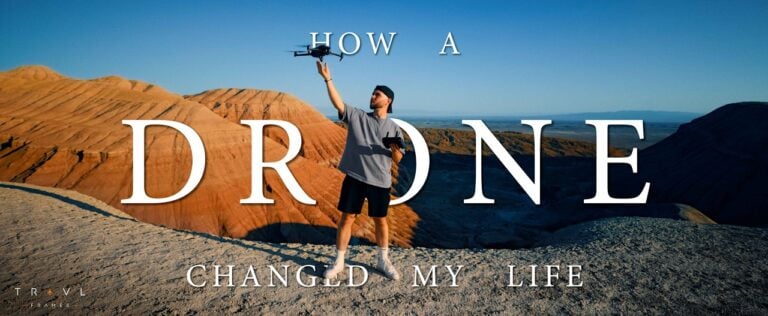
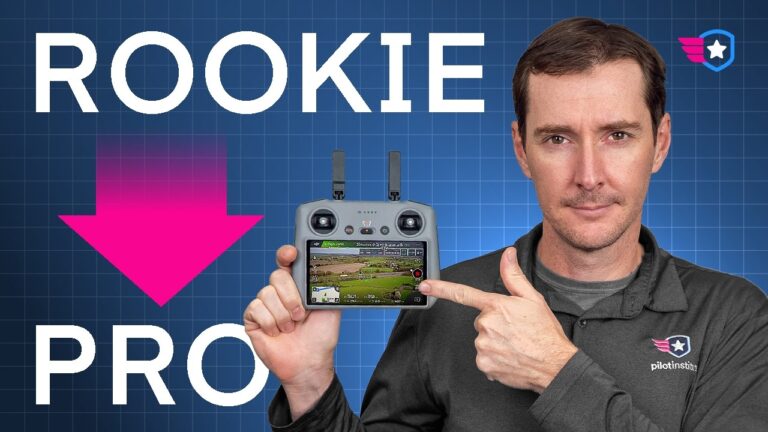
Hi everyone, welcome to another video in my Above and Beyond series. In this installment, you’ll learn the effects of some of the most crucial drone settings and strategies you should know to create stunning aerial videos. Hi everyone, welcome back to the channel. This series, which I call “Above and Beyond,” is designed to assist those just starting in the drone hobby or for those struggling to maximize their drone’s potential. Perhaps you’ve owned your drone for a while and feel frustrated because you can’t achieve the results you want.

Purpose of the Series
My goal is to ensure you walk away with knowledge or skills that enhance your drone-flying experience. I want you to use your drones effectively. Determining the best drone movement settings can be overwhelming, especially for newcomers. I last did a tutorial on drone settings when the Mavic 2 Pro was released, so this video is long overdue.
Understanding Drone Settings
As I present these numbers, I want you to understand the effect each setting has on your drone. I won’t dictate exact numbers to use because I hope you’ll discover what works best for you through practice. Fly your drone and figure out what suits you—like, “This works best for me.” You need to decide what looks best for you through trial and error. I’m not giving you a fish here; I’m teaching you how to fish. While I’ll offer recommendations on some settings, you must ultimately decide what’s best for you and each flying situation.
Even though every drone differs slightly, the settings’ effects remain consistent. What I’m showing you will apply to multiple DJI drones. Today, I’m using the A3S, but much of this applies to most recent DJI models. To access the settings we’re discussing, click the three dots in the upper right-hand corner, then select “Control.”
Gain and Expo Tuning
You’ll see a setting called “Gain and Expo Tuning.” Click on that. Hopefully, you can see this on the screen. At the top, you’ll find three options: Cine, Normal, and Sport mode. Having three modes lets you quickly toggle between them and instantly apply your preferred settings. Yes, Cine mode is designed for slow cinematic movements, but you can customize it however you want—same for Normal and Sport modes. Adjust these settings to your liking. You can tweak just one aspect to differentiate it from the other two modes. While the baseline numbers vary slightly, the differences aren’t drastic.
Exploring Normal Mode Settings
Let’s click on Normal mode and review each setting. The first ones are straightforward: Max Horizontal Speed, Max Ascent Speed, and Max Descent Speed. Typically, you’ll want these set to their maximum. They affect how your drone flies forward, backward, and sideways (horizontal speed), as well as how quickly it climbs or descends in altitude (ascent and descent speeds). Let’s get the A3S airborne, and I’ll demonstrate what’s happening.
Alright, let’s move over there a bit to reduce the noise. Let me check my screen—there we go. As you may know, DJI eliminated geo zones. Thank goodness! I’m thrilled about this. There’s been some controversy, but living in a geo zone area, I had to unlock it every time I flew. Now I don’t, and I’m so happy about that change. That’s a topic for another video, but let’s get up in the air. I’ll ensure we’re above the tree line and revisit the settings.
Maximum Speeds Demonstration
Max Horizontal Speed is set to 33.6, though this varies by drone. These are the maximum speeds your drone can achieve with obstacle avoidance enabled. Let’s test it at 33.6 in Normal mode. Flying straight ahead over the railroad tracks, we’re hitting about 32 mph. Moving sideways, we’re at around 30 mph after gaining some altitude for safety. For Max Ascent Speed, pushing the left stick up, we reach about 13 mph. For descent, it’s around -3 mph—the negative indicates downward movement, though it’s not as fast as the ascent.
These settings are self-explanatory, but I wanted to demonstrate them. You can adjust them based on your needs. Why change them? The stick input for horizontal, ascent, and descent speeds depends on how far you push the stick. You can fly slower by using partial stick movement, but if you want full stick input to limit the drone to a specific speed—like matching a train’s pace without active tracking—you can set it accordingly. Hold the stick, and it won’t exceed that speed. Generally, you’ll keep these at maximum.
Maximum Angular Velocity
Now, Maximum Angular Velocity. Mine’s set high at 75 degrees per second, determining how fast the drone yaws left or right with the left stick. Let’s test it. At 75 degrees, it’s quick—perhaps too fast. I recommend around 60 degrees per second, though it varies by preference. At 20 degrees per second, it’s slow. At 90 degrees, it’s very fast—ideal if you need rapid yawing. I settle around 60 degrees for balance.
Yaw Smoothness
Next, Yaw Smoothness controls how quickly yaw engages and disengages. At one, it stops instantly—sharp starts and stops. At 100, it’s gradual, continuing to roll after releasing the stick. I set mine to 40, offering a slight drift I can edit out. Most pilots prefer 20–30, but adjust to your taste.
Brake Sensitivity
Brake Sensitivity, ranging from 10 to 150, affects how abruptly the drone stops when releasing the pitch stick. At 10, it coasts too much for my liking. At 150, it stops more suddenly. I set mine to 40 for a balanced coast. Adjust based on your flying style.
Expo Settings
Now, Expo settings—often confusing—govern stick sensitivity. At 0.9 yaw sensitivity, the drone reacts instantly to slight touches, as shown on the graph. At 0.1, there’s a delay, requiring more stick movement. I set yaw at 0.3, pitch and roll at 0.25. At 0, it’s hypersensitive; at 0.9, it’s sluggish. I aim for balance—slight motion before movement begins.
Gimbal Tilt Speed
Maximum Control Speed adjusts gimbal tilt speed, from 1 to 100 degrees per second. At 100, it’s too fast. At 1, it’s barely noticeable. I recommend 15–20 degrees per second, with tilt smoothness at 15 for a gradual stop. Reset settings if needed via “Reset Current Settings.”
That covers Gain and Expo Tuning. I hope this clarifies these settings. Questions? Leave them in the comments. Next video, I’ll cover additional drone and camera settings for more control and better video projects. Thanks for watching—I appreciate your patience with my recent content gap due to poor weather. I’m thrilled to be back in my element. Hope you’re enjoying good weather too. Fly safe and smart!
Discover more from DroneXL.co
Subscribe to get the latest posts sent to your email.
Check out our Classic Line of T-Shirts, Polos, Hoodies and more in our new store today!

MAKE YOUR VOICE HEARD
Proposed legislation threatens your ability to use drones for fun, work, and safety. The Drone Advocacy Alliance is fighting to ensure your voice is heard in these critical policy discussions.Join us and tell your elected officials to protect your right to fly.

Get your Part 107 Certificate
Pass the Part 107 test and take to the skies with the Pilot Institute. We have helped thousands of people become airplane and commercial drone pilots. Our courses are designed by industry experts to help you pass FAA tests and achieve your dreams.

Copyright © DroneXL.co 2026. All rights reserved. The content, images, and intellectual property on this website are protected by copyright law. Reproduction or distribution of any material without prior written permission from DroneXL.co is strictly prohibited. For permissions and inquiries, please contact us first. DroneXL.co is a proud partner of the Drone Advocacy Alliance. Be sure to check out DroneXL's sister site, EVXL.co, for all the latest news on electric vehicles.
FTC: DroneXL.co is an Amazon Associate and uses affiliate links that can generate income from qualifying purchases. We do not sell, share, rent out, or spam your email.