DJI Avata 360 Review: Everything You Need to Know Before You Buy

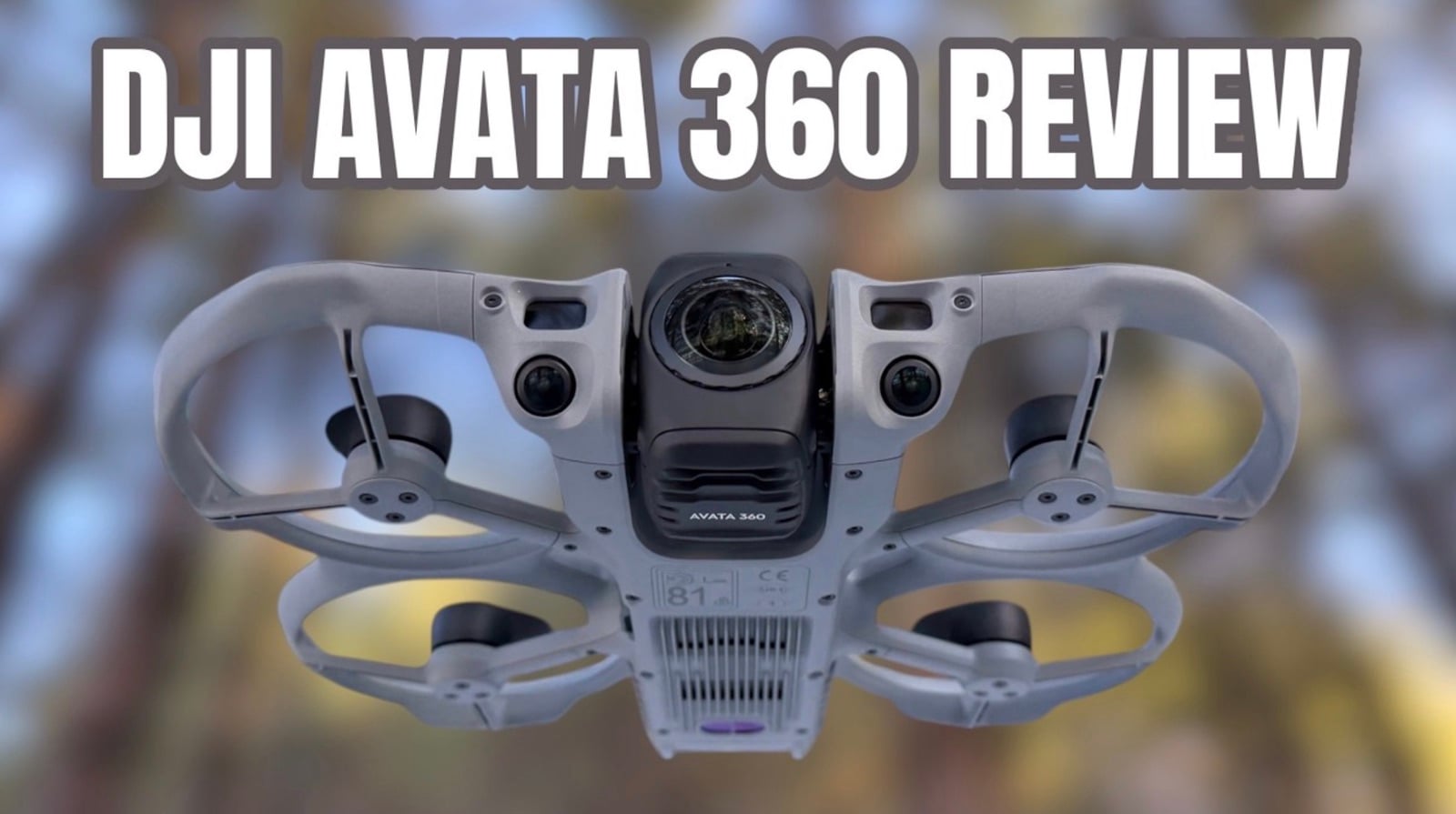
Good day folks. Shawn here from Air Photography. DJI has just launched a brand new, really exciting new product — the DJI Avata 360. I’ve been waiting for this for a very long time, and for some people, this is going to change the way you create and capture aerial footage.
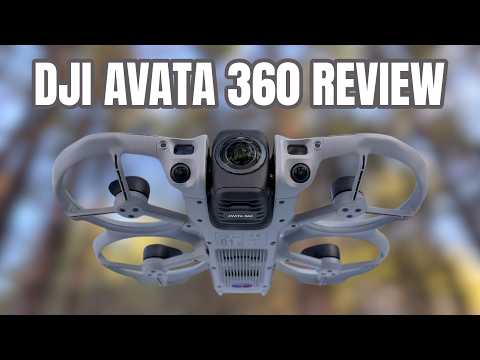
Introduction: A Game-Changer for Aerial Creators
The Avata 360 is the first drone in the Avata series that can be flown with a standard controller, and that’s going to open it up to many more people because not everybody likes to fly with goggles and a motion controller. When flying with a standard controller, you have full access to all the creative tools — you can film in 360, and we’re going to take a closer look at that coming up later in the video.
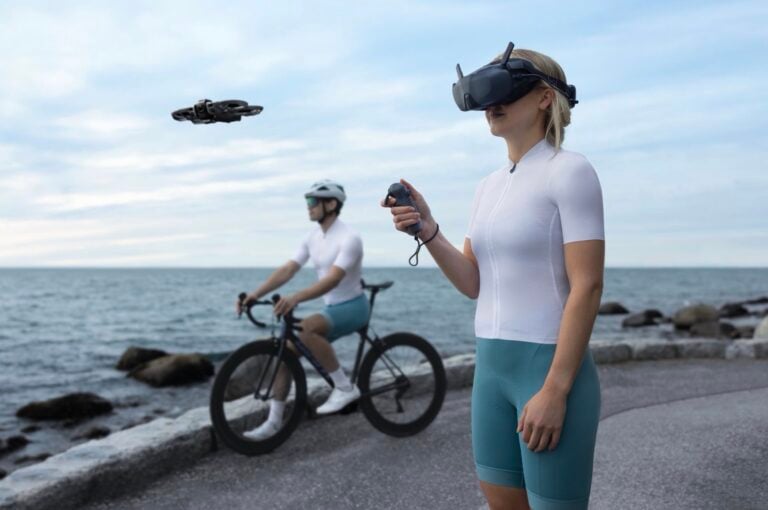
Of course, if you still prefer, you can fly it with the Motion 3 controller and a set of goggles. The Avata 360 is compatible with the Goggles 3 and the Goggles N3. As for controller compatibility, it is compatible with the RC2, the RCN2, and the RCN3. If you’re going to be flying it FPV style, it’s compatible with the Motion 3 controller and the FPV3 controller.
Two Capture Modes: 360 Spherical and Single Lens
What’s really interesting about the Avata 360 is that it has two capture modes. It can be in 360 spherical mode where you’re capturing in every direction and every angle, but it also has a single lens mode. So if you just want a more traditional drone flight, right within the software — either on the RC2 or in goggles with the Motion 3 controller — you can set it to either single lens mode or 360 mode.
The way it works is really interesting. The gimbal on the front has a camera facing forward at launch, which keeps the lenses protected so there’s no lens facing downward on takeoff. Once the drone is in the air and you switch it into 360 mode, the lens flips automatically on its own — now you have a lens at the top and a lens at the bottom, and that’s how it captures 360 video. Due to the design of the Avata 360, the drone itself remains invisible in the shot.
When you switch back to single lens mode, the camera rotates automatically so you have just a single lens facing forward. For the most part, all the intelligent flight features are only available in 360 mode, so that’s probably the mode you’ll be flying in most of the time.
Just due to the nature of 360 lenses and the way they protrude out, some of you might be worried about them getting damaged. DJI does sell a replacement kit separately, which has all the tools needed to replace a 360 lens if it happens to get damaged.
Specs: 8K Spherical, Dual 1/1.1-Inch Sensors, and O4 Plus
The Avata 360 features two 1/1.1-inch sensors, which allows you to capture 8K spherical footage or 4K footage when filming in single lens mode. It also supports capturing 120-megapixel spherical photos. And just like spherical video, you can go in and manipulate those photos to get unlimited perspectives — set the field of view, set the aspect ratio, change perspectives. Capture once, go into the photo editor, use the built-in templates or drag the photo around until you find the perfect framing, and then simply export.
It features the O4 Plus transmission system with a rated range of 20 km. You’re never really going to fly it out 20 km, but what that gives you is a nice solid connection with strong anti-interference performance. Even if you’re flying in complex environments such as a congested Wi-Fi area, you’re still going to retain a reliable connection.
The overall footprint of the Avata 360 is a little bit larger than the Avata 2, though if you look down at it, it is slightly thinner. And yes — I know the common question — is it loud? For the most part, it’s very similar to the Avata 2. With this type of ducted guard design, those drones tend to be a little louder. It’s not going to be as quiet as something like the Mini 5 Pro. But the ducted guards do make it a lot safer, especially when flying in tight quarters. If you nick a tree branch, the ducted guards help prevent a crash — most of the time the drone can just push on through.
360° Omnidirectional Obstacle Avoidance
The Avata 360 is the first model in the Avata series that features 360° omnidirectional obstacle avoidance. Looking at the front of the drone, you can see two fisheye sensors. It also features LiDAR, which gives you obstacle avoidance in near-dark conditions. Now, if you look at the top and back of the drone, there are no built-in sensors — but the way it achieves omnidirectional obstacle avoidance is by using the 360 cameras themselves. When filming in 360, the camera at the top and the camera at the bottom work together to give you complete 360° obstacle avoidance coverage.
This is important to keep in mind: when you’re flying in single lens mode with the camera just facing forward, you only have front-facing obstacle avoidance. The full omnidirectional obstacle avoidance is available while flying with a standard controller or with the Motion 3 and goggles. It can be disabled in the settings — if you’re flying FPV style and want to fly fast and close to obstacles, turning it off will allow you to get a little bit closer.
Other key specs: the Avata 360 can reach flight speeds of 18 m/s in sport mode, has a level five wind rating, and has 42 GB of built-in internal storage. 42 GB is not a lot — you’ll definitely want to add a large memory card, especially for the large 360 files. But that internal memory can come in handy if you forget a card or your card fills up while you’re out flying.
For those who like to do their own grading, the Avata 360 supports D-Log M. Like other DJI drones, it also supports Color Assist — giving you an accurate color representation on screen while the footage saved to the memory card is in that flat D-Log M profile.
Advanced Return to Home
Another great feature carried over from some of DJI’s flagship drones is the Advanced Return to Home. We first saw this introduced on the Air 3S and then brought over to the Mavic 4 and most recently the Mini 5 Pro. With this next-generation feature, the Avata 360 can navigate complex environments on its return trip — really important if you’re flying with a lot of obstacles and happen to get disconnected due to interference. The drone can accurately make its way home while avoiding all obstacles, and it can even do that without a satellite connection. And now with its front-facing LiDAR, it can navigate safely even in dark environments.
Tracking Capabilities: The Biggest Selling Point
For me, the really impressive new features of the Avata 360 are its new tracking capabilities. It has a new Spotlight mode, a Free Mode that is absolutely incredible, and it’s going to change the way you use it. This is the first Avata to feature tracking capabilities — it has full access to Focus Track, and you can make use of that whether you’re flying with a controller or with goggles and the Motion 3 controller.
When flying with a controller in 360 mode, it’s going to feel very familiar. When you select a subject — either manually by drawing a box around it or by using the subject selection feature where a plus sign appears on trackable objects — you get Active Track, Point of Interest, and Spotlight. Point of Interest works very similarly to what we’ve seen on other drones: you set the rotation speed and direction, it works really well, and it’s a simple way to get nice orbit shots.
Spotlight is one of my favorite tools, and with the Avata 360, they’ve taken it a step further. You can fly normally with the camera locked on the subject — fly around, raise the altitude, change the distance, and the subject always remains centered. But there’s a new Free Mode that’s really interesting. As soon as you enable it, an extra preview window pops up in the bottom left corner. It works very similarly to how the Inspire 3 works, where you have a dedicated FPV camera for the direction you’re flying and another camera capturing the footage. You always know the subject is locked on and framed, while having free range to fly around with that front-facing view. It’s a lot safer and allows for much more precision.
And a lot of people are going to be really happy that the Avata 360 features Active Track. Just like other DJI drones with Active Track, you get two options: auto or manual control. In auto mode, the drone automatically takes aesthetics into consideration — it keeps everything framed nicely and moves around throughout the shot, maybe starting a little higher, then moving in closer, shifting to a different angle, all automatically. That lets you focus on what you’re doing and let the drone do the work. In manual, you have two rings in the bottom left corner to drag the drone to any position and choose between closer or wider shots.
In my opinion, one of the most exciting new features is the ability to track while flying in FPV mode with a controller and goggles. You can enable Focus Track from the top menu in the goggles, a plus sign appears on trackable subjects, and once you’ve selected a subject, a secondary window pops up at the top left showing what’s being framed — while you still have the full FPV view to fly around freely. If you’ve tried to do any type of framing like that on a traditional FPV drone, you know it can be very difficult. The Avata 360 makes it extremely easy. You can capture tracking shots that would be very difficult, if not impossible, on a traditional FPV drone. It stays locked onto the subject even at a fair distance, and you can just fly around freely capturing really complicated shots.
I think the new tracking capabilities — whether flying with the RC2 or with goggles and the Motion 3 — are going to be one of the biggest selling points. You’ll be able to easily capture dynamic shots no matter your skill level.
Vision Assist, Infinite Roll, and Field of View Options
That new secondary window feature also comes in handy when using Vision Assist. Vision Assist has been available on other drones, but it was always black and white and really low resolution. Because of the 360 cameras on the Avata 360, when you launch Vision Assist, it’s going to be in full color and high resolution, showing a lot of detail. It always shows the direction in which you’re flying — whether that’s backwards or sideways — so you can always see if there’s a potential hazard or obstacle coming up.
One feature that some creators are going to really enjoy is the infinite roll, pan, and tilt. Rolling the gimbal was something introduced on the Mavic 4 and Mini 5 Pro, but those cameras have hard physical limits. Because of the Avata 360 and the design of the lenses, you have infinite roll — you can get really creative with no hard limits. And because it’s capturing in spherical video, you’re not limited to horizontal or vertical content. You can export it later as a vertical video for short-form content or horizontal for platforms like YouTube — extremely versatile for creators.
While flying with a controller, you have three field of view options to set right on screen: 104°, 134°, or an extremely wide 272°. You can change these using the button on screen next to the record button, or with the zoom button on the right side.
Easy Acro and 360 Editing Workflow
Just like previous versions of the Avata series, the Avata 360 fully supports Easy Acro, which can be enabled in the goggles. It does it a little differently because of the nature of 360 — the drone doesn’t actually have to perform the full maneuver. The camera itself can do the flipping and rolling while still allowing you to capture those dynamic shots. Beyond flips and rolls, there’s a new maneuver called Juicy Flick. The nice thing about Easy Acro is that it doesn’t matter your skill level — you can be flying with goggles and the Motion 3 controller and still get some of those really complex maneuvers.
Filming in spherical mode means you’re capturing in every direction with one flight, giving you multiple angles. For example, flying towards a lighthouse over a lake: on a traditional drone, that’s the only footage you have. You can’t change the field of view or the angle afterward. If you wanted a shot of flying backwards, that would require a second flight — perhaps a third and fourth depending on what angles you want. With the Avata 360, it’s as simple as spinning the camera around, setting your field of view, and from that one flight you now have multiple different angles. Add a few key frames, change the perspective, and as you fly, the perspective will change. Sometimes that’s really nice because you don’t always get a second chance to take another shot.
I know some people are going to be a little hesitant about 360 because they think it’s going to be complicated. If you’ve never worked with 360, there are a few extra steps, but DJI has made it extremely easy. When you’re flying with a controller or with goggles and the Motion 3, everything you see on screen or in your goggles is what gets captured — including the field of view, zoom level, and any gimbal movements like rolling or panning. When you bring it into the DJI Fly app, you can preview it exactly the way you filmed it. That’s called Shooting Perspective.
In Shooting Perspective mode, everything you filmed as you saw it on screen is how it exports — ready to go as a flat video, no editing required. You can bring it into any editor or share it directly to social media. But you always have that spherical video to fall back on if you want to get creative later. Switch over to Free Perspective, and that’s where you can manipulate it, change the angle, and add keyframes and motion. You really get the best of both worlds.
Off-State Quick Transfer and Battery Life
The Avata 360 fully supports Off-State Quick Transfer, which allows you to transfer content from the internal memory or memory card to your device without even powering the drone on. When you get home after a day of flying, all you have to do is launch the DJI Fly app. It recognizes the Avata 360, even in sleep mode, joins the Wi-Fi, and you’re connected — even if the drone is still sitting in a camera bag in the backseat of your car. You can log in and transfer content over to start editing right away.
The Avata 360 has a 2,700 mAh battery rated for approximately 23 minutes of flight time. You’re not going to hit that fully — it depends on conditions, wind, and how aggressively you’re flying — but it’s safe to say you’ll get anywhere from 17 to 20 minutes of flight time per battery.
The charging hub that comes with the Avata 360 is very familiar. It accommodates up to three batteries, can be used as a power bank, and supports the consolidation feature. If all your batteries are at around 30%, you can press and hold the power button to consolidate all remaining power into one battery, which can potentially give you an extra flight.
Previewing 360 Footage and Available Packages
When you’ve been out filming and captured spherical content with the RC2 or goggles, you can preview it in full 360° right in the app — tap play, and you can swipe around to get different angles, look up, look down, zoom in and out. It works the same way when previewing in the goggles: just look around and change the perspective. You can watch back your footage and see what it looks like from every angle.
When it comes to packages, there are several options available for the Avata 360, including a drone-only kit — so if you already have a compatible controller and goggles, you can purchase just the drone itself, update the firmware on your controller, and pair it directly. On top of that, there’s a FlyMore Combo with the RC2 controller and one with goggles and the Motion 3 controller. The FlyMore Combos come with a landing pad, a carrying case, spare batteries, and the charging hub.
Final Thoughts: Is the DJI Avata 360 Right for You?
That’s a basic overview of the new DJI Avata 360. I think this is going to be a great tool for some creators — people will be very pleased with the type of content they’ll be able to capture with it. That said, the Avata 360 may not be a drone for everybody. If your primary focus is cinematography and capturing aerial photos, something like the Mavic 4 Pro, the Air 3S, or even the Mini 5 Pro might be a better choice. But for some creators, just due to the flexibility, the type of content you can capture, and the new tracking capabilities, this might be a great new tool to add to your camera bag.
For those who are brand new to 360, I have a few videos coming up where I go over how to edit the 360 footage — it’s actually a pretty easy process. I know some people might be concerned that it’s complicated and time-consuming, but there are only a few extra steps, and once you get the hang of it, you’ll find it’s quite easy. And for those who have never even flown a drone before, I have a beginner’s guide coming in the next couple of days covering everything you need to get up and flying and prepare for your very first flight.
Hopefully you enjoyed this overview and found it valuable. Thanks a lot for watching, and I’ll see you in the next one.
This article is based on a video by Shawn from Air Photography. You can follow more of Shawn’s drone content on his YouTube channel and read his other articles on DroneXL.
Discover more from DroneXL.co
Subscribe to get the latest posts sent to your email.