DJI Neo 2 Complete Beginners Guide – Getting Ready For Your First Drone Flight

Check out the Best Deals on Amazon for DJI Drones today!
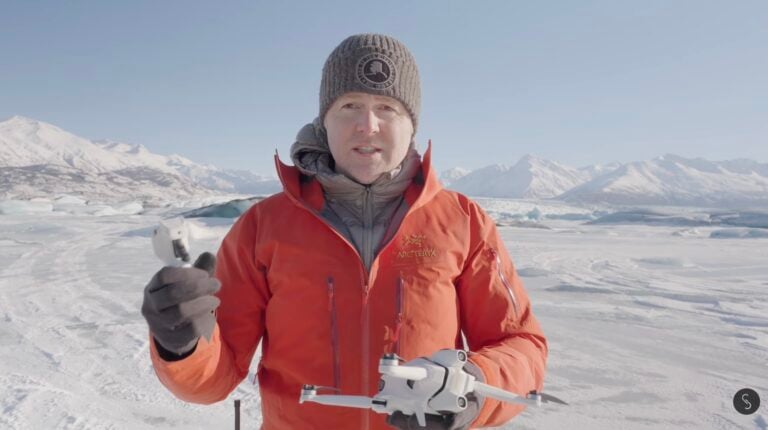
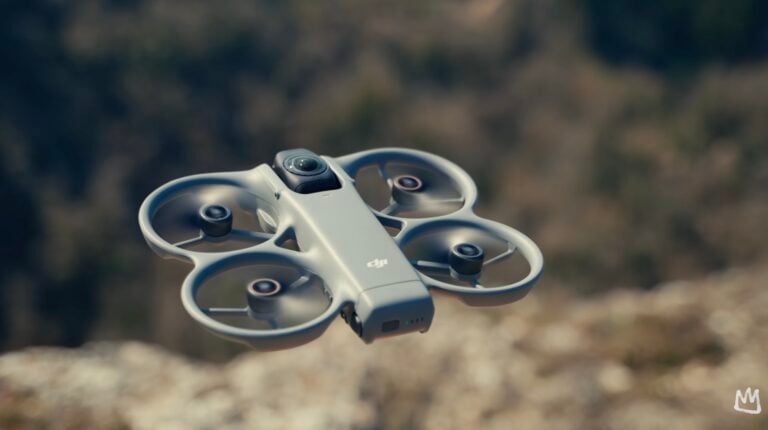
Good day folks. Shawn here from Air Photography. This is my complete beginner’s guide for the new DJI Neo 2 drone. In this guide, I’m going to cover everything you need to know to prepare for your very first drone flight.
The Neo 2 is an extremely versatile drone. It can be flown completely autonomously without a controller. It can take off and land right in the palm of your hand. You can utilize a smartphone to launch intelligent flight features or fly it like a more traditional drone with virtual joysticks. You can also connect it to a traditional controller for more precise flight, and you can even fly it FPV style with goggles and a motion controller.
We’re going to save FPV flight for a separate video because there’s a lot to cover there. If you purchased the kit with the FPV goggles or plan on getting them, stay tuned for that.

DJI Neo 2 Purchase Options And Packages
Before we get too far into things, let’s talk about the different packages in case you haven’t purchased one yet.
The first package is the drone only. You’ll get the aircraft with one battery, two spare propellers, a screwdriver to change the props, and a charging/data cable. In this configuration, you’re flying autonomously or connecting to your smartphone with virtual joysticks.
The Fly More Combo includes everything from the base package plus two spare batteries and a charging hub. I definitely recommend this package. Having those extra batteries can be really important. You can always purchase extra batteries and the charging hub separately later.
Another package includes the RC-N3 controller. You get the drone, spare props, data cable, screwdriver, the controller, and the transmission module. This module connects to the back of the drone so it can communicate with controllers.
They also have this in a Fly More Combo with controller where you get everything plus the charging hub and two extra batteries.
Finally, there’s the Motion Combo or FPV Combo. This includes a set of goggles and the motion controller for FPV flight.
Hardware Overview: Getting To Know Your Neo 2
Let’s take a look around the equipment. At the front of the drone, we have a gimbal cover that protects the camera during transport. Just press on the bottom part to remove it. Keep this installed when the drone is in your camera bag.
The props are completely enclosed for safety, which is critical since this drone takes off and lands in your palm. They are removable if you want extra battery time or more agility, but as a beginner, I recommend leaving them on.

At the top, you’ll find one battery already pre-installed. To remove it, press the two buttons on either side and pull it out. To reinsert, place the back of the battery in first, line it up, and press down.
On the back of the drone is a USB-C port for data transfer and charging. This is also where we connect the transmission module.
Moving around the drone, you’ll notice various sensors. The Neo 2 features omnidirectional obstacle avoidance, a major upgrade from the original. There’s one sensor at the top, a couple at the bottom, and sensors on the sides.
There’s also an LCD screen on the side that displays filming parameters when flying autonomously, so you can see exactly what settings you’re using without connecting to your phone.
At the top is the power button. When powered off, a quick single press shows the battery level. On the side are the flight controls for autonomous use: the red launch button and two selector buttons (forward and backward) for cycling through flight modes and adjusting parameters like height and distance.
The Transmission Module Explained
The transmission module only needs to be attached when using the RC-N3 controller or FPV motion controller. When flying autonomously or with your smartphone, you don’t need it installed.
You can still use the drone completely autonomously with the module installed. If you purchased the drone with the controller, it’s already pre-installed.
Installing it is simple: plug the USB-C connector into the back of the drone and tighten the four screws with the included screwdriver. The screws are held in place by a mechanism, so you won’t lose them in the field.
Controller Basics: RC-N3 Overview
If you purchased the kit with a controller, the sticks are stored in the bottom. Remove these when transporting to protect the gimbals. They screw in and are identical, so it doesn’t matter which side.
The power button uses a double press: quick press, then long press to power on. Same procedure to power off. A single press when off shows the battery level.
Beside the power button is the mode selector: Cine mode slows everything down for cinematic footage, Normal mode is everyday flight, and Sport mode is fastest but disables obstacle avoidance.
You’ll also find a return-to-home button, a pause/break button, a function button for shortcuts, and a button that toggles between video and photo mode.
On top, the shutter button starts/stops recording or takes photos depending on your mode. The gimbal control wheel tilts the camera up and down.
To mount your smartphone, slide it into the grooves at the top and attach the data cable. By default, there’s a USB-C cable installed. The package includes a Lightning adapter for older iPhones.
Storage And Charging Your Batteries
Unlike traditional drones, the Neo 2 does not have a memory card slot. It uses built-in memory of about 48 or 49GB. No memory card purchase needed.
To charge the drone, you have two options. If you have the charging hub, install the battery the same way as the drone: line up the groove at the bottom, place it in, and press down.
Press any battery or the side button to see power levels. The charging hub can also work as a power bank via the USB-C port to charge your smartphone in a pinch.
The package doesn’t include a charging brick, but any USB-C charger works. I recommend at least a 30-watt charger, ideally 45 or 65 watts. With a 65-watt charger like this Anker, all three batteries charge simultaneously. Lower wattage chargers may only charge one or two at a time.
To remove batteries from the hub, just grab from the top and pull. The release buttons are only needed when removing from the drone itself.
You can also charge directly in the drone using the USB-C port on the back. This works even with the transmission module installed, as it has a pass-through USB-C port.
Activation And Firmware Updates
Before flying the DJI Neo 2, you need to activate it and update the firmware using the DJI Fly app.
Download DJI Fly from the Apple App Store. For Android, download directly from the DJI website. Create a DJI account if you don’t have one and log in.
Power on your Neo 2 with a double press: quick press, then long press. You’ll see the props turn slightly and hear the welcome chime.
The Fly app will detect your Neo 2. Tap on it, press and hold the power button for 3 seconds when prompted, then connect to the drone’s Wi-Fi network.
After connecting, you’ll be prompted to activate. Once activated, a dialogue box will prompt you to download the latest firmware. Hit download and wait 5-10 minutes depending on the update size and your internet speed. The drone may restart several times during the update.
If you purchased the kit with a controller, do this procedure with your phone mounted in the controller. This ensures the controller firmware also gets updated.
Flying Autonomously Without A Smartphone
When flying the Neo 2, you don’t need to connect to your smartphone. You can adjust all parameters with the side buttons. However, connecting to the Fly app provides a visual preview, easier setting changes, and extra features like return-to-home.
To fly autonomously, power on the drone and use the back and forth buttons to cycle through intelligent flight modes. The LCD screen previews each mode: Follow, Rocket, Circle, Spotlight, Droney, Master Shots, and more.
You can customize which modes appear in the cycle through the DJI Fly app settings.
To adjust parameters like tracking angle or distance, press and hold one of the selector buttons. The LCD will show which parameter is flashing. Use the arrows to adjust, then press the launch button to exit customization.
When ready to launch, hold the drone level with the camera facing you. The camera needs to lock onto a human subject. Press the red launch button.
The drone automatically starts recording in autonomous mode, so don’t worry about hitting record. When finished, simply put your hand out underneath it, and it will land in your palm.

Flying With Your Smartphone Connected
Connecting to your phone while flying autonomously gives you extra benefits: visual preview, easy setting changes, and access to return-to-home.
After connecting via the Fly app, you’ll see three tabs at the bottom: Album shows content on internal memory, Control is the main flight interface, and Settings lets you adjust all flight mode parameters.
In Control mode, you can see battery percentage, signal strength, and obstacle avoidance status at the top. The preview shows what you’re filming. You can tap to switch to vertical format for social media.
The app also supports voice control and gesture control, which I’ll cover in a separate video.
For intelligent flight modes like Follow, you’ll see a wheel that lets you change the tracking angle on the fly while recording. This is a major upgrade from the original Neo.
If something goes wrong, hit the Stop button to make the drone hover in place. You can then use virtual joysticks to maneuver it or tap Return to Home.
Manual Flight With Virtual Joysticks
Instead of using intelligent flight modes, you can select Manual Control in the app. Tap Start and press and hold the takeoff button. Virtual joysticks appear on screen.
This replicates traditional drone flight. Move the drone forward, rotate it, raise and lower altitude, and capture cinematic shots. Use the side button to adjust camera angle up and down.
You can rotate your phone for a horizontal layout with a larger preview.
Keep in mind that virtual joysticks don’t offer as much precision as physical sticks, but they work great for close-by shots. The range is limited to roughly 75-100 meters (245-328 feet) before the feed breaks up. For extended range, you’ll want a controller.
Flying With The RC-N3 Controller
For controller flight, you need the transmission module attached. Set up by attaching your sticks, pulling out the antenna, mounting your smartphone, and connecting the data cable.
Power on the controller and drone, then launch the DJI Fly app. If purchased together, they automatically connect. If you bought them separately, you’ll need to pair them through the Connect to Aircraft menu.
Before takeoff, wait for satellite connection and a home point to be set. Watch for at least 12-13 satellites. You’ll hear an audible message: “Home point updated.” This ensures the drone can return safely if you lose connection.
Near obstacles or buildings, satellite connection takes longer. Hovering the drone 5-10 feet (1.5-3 meters) up can speed this up.
To take off, use the on-screen button or push both sticks down and inward to start motors, then push up on the left stick. The drone will hover at about one meter until you give input.

Basic Stick Commands
The right stick controls movement: forward/backward and left/right strafe.
The left stick controls altitude (up/down) and rotation (left/right yaw).
Combining both sticks creates dynamic movements, which comes with practice.
Be cautious about orientation. When the drone faces away from you, controls work as expected. When facing you, left and right are reversed. This catches many beginners, but you’ll adapt with practice.
Obstacle Avoidance Settings
The Neo 2’s obstacle avoidance is a significant upgrade. In the Settings under More Settings, you can set it to Bypass (finds a route around obstacles), Brake (stops when detecting an obstacle), or Off.
As a beginner, leave it on. But experienced pilots may sometimes want it off when obstacle avoidance prevents capturing specific shots. If you turn it off, exercise extreme caution.
Remember that obstacle avoidance isn’t perfect. It struggles with thin branches, ghost branches from fallen leaves, and wires. Always maintain visual awareness.
Transferring Content To Your Devices
There are two methods to transfer content from your Neo 2.
Method 1: DJI Fly App (Wireless)
Connect to the drone, open the Fly app, and tap Album. You’ll see all content on internal memory. Tap any file to preview, then tap the download arrow. Choose Full Download for the complete file or Trimmed Download to select in/out points.
For multiple files, tap the checkmark to batch select, then download.
Method 2: Direct USB Connection
This works with iPhones, iPads, tablets with USB-C, and computers. You don’t even need to power on the drone or have a battery installed.
Plug a USB-C cable from the drone’s port to your device. On an iPad or iPhone, open the Files app. Under Locations, you’ll see Internal Storage. All your files are there ready to transfer.
When using the Fly app, files save to the Photos app. When using USB connection, files go to the Files app.
Tips For First-Time Pilots
If you’re brand new to drones, research the drone regulations in your country before flying.
For your first flight, choose a nice open area with not many people or obstacles. The Neo 2 has obstacle avoidance, but don’t rely on it completely. Thin branches, falling leaves, and wires are difficult to detect.
You might feel anxiety on your first flight. Keep your flights close and low. Get a good feel for how the drone maneuvers. That anxiety fades quickly once you develop faith in the equipment, and DJI drones are really reliable.
If the drone disconnects while flying, don’t panic. It will automatically return home. That’s why setting a good home point is essential.
If you get into a tricky situation, let go of the sticks. GPS will hold the drone perfectly in place. Take a moment to assess the situation, figure out orientation, and then maneuver out carefully.
There’s still a lot to learn about the Neo 2 that I didn’t cover here. I’ll be making more tutorials diving deeper into specific features, including FPV flight. Make sure you’re subscribed so you don’t miss those.
Hopefully, you enjoyed this guide and found it valuable. Thanks a lot for watching, and I’ll see you on the next one.
Shawn is a drone content creator at Air Photography and long time DroneXL contributor. You can find more of his tutorials and reviews on his YouTube channel.
Discover more from DroneXL.co
Subscribe to get the latest posts sent to your email.
Check out our Classic Line of T-Shirts, Polos, Hoodies and more in our new store today!

MAKE YOUR VOICE HEARD
Proposed legislation threatens your ability to use drones for fun, work, and safety. The Drone Advocacy Alliance is fighting to ensure your voice is heard in these critical policy discussions.Join us and tell your elected officials to protect your right to fly.

Get your Part 107 Certificate
Pass the Part 107 test and take to the skies with the Pilot Institute. We have helped thousands of people become airplane and commercial drone pilots. Our courses are designed by industry experts to help you pass FAA tests and achieve your dreams.

Copyright © DroneXL.co 2026. All rights reserved. The content, images, and intellectual property on this website are protected by copyright law. Reproduction or distribution of any material without prior written permission from DroneXL.co is strictly prohibited. For permissions and inquiries, please contact us first. DroneXL.co is a proud partner of the Drone Advocacy Alliance. Be sure to check out DroneXL's sister site, EVXL.co, for all the latest news on electric vehicles.
FTC: DroneXL.co is an Amazon Associate and uses affiliate links that can generate income from qualifying purchases. We do not sell, share, rent out, or spam your email.