DJI Avata 2 – Incredible New Features – Full Review

Check out the Best Deals on Amazon for DJI Drones today!
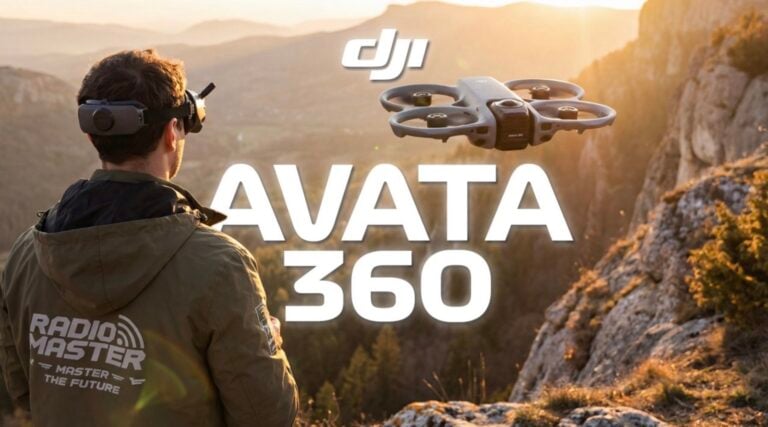
Good day folks, Shawn here from Air Photography. DJI has launched the brand new Avata 2 alongside a new set of goggles, the Goggles 3, and a new motion controller, the DJI Motion Controller 3.

Avata 2 Packages
With the Avata 2, they’ve done the packages a little bit differently. You can buy the Fly More Combo, which basically comes with the drone, the Goggles 3, the Motion Controller 3, and one battery. But this year they have a new Fly More Combo – a three battery version which includes everything we just talked about plus an additional two batteries, a charging hub, and for the first time with an Avata, you get a case. It’s actually a really nice case and it works quite well.
Avata 2 Design and Features
The Avata 2 has a brand new design – it’s much more streamlined. The overall footprint is slightly bigger than the original Avata, but it’s not quite as thick. It’s a little bit more streamlined. That definitely makes it not quite as top-heavy. On top of that, we have a new three-blade prop design and it’s 20g lighter. All of that combined, makes the drone a little bit more agile and a little bit more stable in the air.

Some of these new design enhancements also make the drone much quieter. DJI is rating this at 81dB, the same dB rating as the Air 3. It is definitely noticeably quieter and that is fantastic, because we all know that sometimes these FPV drones can get a little loud, and it can make you not want to fly in certain locations. But the Avata 2 is actually quite quiet, relatively speaking, compared to other similar drones, and it definitely does not draw as much attention when you’re out flying.

Another big improvement of the Avata 2 is the new battery mechanism. That was kind of an issue with the original Avata – in the case of an impact, sometimes the battery would pop out. It’s very important that the battery stays in, because if you do have a crash and you need to locate your drone, the drone must remain powered on to use some features, such as the beeping, or even if you need to use Turtle mode to try and put it upright.

But you can see, we now have two buttons on either side that, when installed, give you a nice satisfying click, and it seems to be in there very securely. I haven’t done any intense crashes with it yet to test if the battery stays in, but I did have one crash where I hit a tree and it fell to the ground, and indeed the battery did stay in place.

Another new design improvement is that they’ve moved the memory card slot and the USB-C port to the bottom and it’s easily accessible now. You can see there’s a door we just open up and we have our USB-C for charging, updating firmware, or transferring content, and we have the memory card slot right below that. No more having to kind of fiddle in there with that five-blade prop design trying to get the memory card out. So definitely a great new enhancement there as well.

DJI Avata 2 Image Quality and Stabilization
The DJI Avata 2 gets an image quality update. It now has a 1/1.3″ sensor, similar to what comes inside the DJI Osmo Action 4. That’s going to improve image quality all around. But they’ve also included 10-bit D-Log with the Avata 2. The original Avata was only 8-bit, but if you’re a person who likes to grade your own footage, you can now capture in D-Log 10-bit.
On top of that, stabilization gets an improvement with RockSteady 3.0. And just like the original Avata, you have that feature of horizon leveling. So if you want to get more traditional drone footage with a completely level horizon, you’re able to do that in the settings. And just like the original Avata, it is fully compatible with third-party stabilization like Gyroflow. With it, you just disable the onboard stabilization, make sure you’re filming in a wide field of view, and you can then import it in and stabilize it in post.

Avata 2 Internal Memory and Sensors
When it comes to internal memory, they’ve upgraded that to 46GB. Personally, I would have liked to have seen that at least 64GB, if not 128GB. But it’s definitely nice that it has been increased, because if you’re out flying and you end up filling up your memory card, you know you can store a fair amount of content – you can do several more flights with that internal memory.
Another thing that’s new this year is we now have two kind of downward-facing, rear-facing sensors. It’s very similar to what’s on the Mavic 3, the Air 3, and the Mini 4 Pro with its fisheye lenses. So it can kind of see in a large area around it.

Avata 2 Flight Time and Easy Acro Mode
In addition, we can now get a little more flight time with the Avata 2. It’s now rated for 23 minutes of flight time. Now, you’re never going to fully get that rated amount of flight time – it’s going to depend a lot on the conditions you’re flying in and your flying style. But 23 rated minutes is quite good compared to sometimes only a few minutes of a traditional FPV drone.

Another really interesting feature that they’ve added with the Avata 2 this year is something called Easy Acro. With Easy Acro, it doesn’t matter your skill level – anybody can perform tricky aerial maneuvers all with a click of a button. It works in conjunction with your Motion Controller 3. Once you enable it in the goggle settings (you do so by swiping down from the top and enabling Easy Acro), you can see at the left-hand side there we have different options for what kind of aerial maneuver you want to perform.
You can do flips and rolls, you can do drifting effects, all while just using the joystick on the Motion Controller 3. For flips and rolls, you can do it while the drone is sitting stationary and hovering, or you can combine that while in flight to get some really interesting footage. Definitely an interesting feature, and I think a lot of people who like flying with the motion controller being able now to do some aerial tricks, that you just weren’t able to do before with a motion controller, I think people are going to really enjoy that.
Avata 2 Charging and Quick Transfer
The way we charge the Avata got an upgrade this year. With the original Avata, it came with its own separate charger. But now we can charge the battery while it’s installed in the drone just by using the USB-C. And plus, on top of that, you can purchase the charging hub. It comes standard with the three battery version of the Fly More Combo, and I’m pretty sure you’ll be able to purchase this separately down the road as well. This charging hub works the same way as the charging hub for the DJI Air 3 or the DJI Mini 4 Pro.

You can plug it in and it’ll charge one battery at a time. But this charging hub can be used as a power bank as well. So you can plug a device into the USB-C – say your smartphone is getting a little low in power, you can top it off. Plus it has that power consolidation feature. With it, you can put batteries in at different levels, press and hold the power button, and what that’s going to do is try and consolidate all the power from all three batteries into one. And that’s a really great feature that can sometimes allow you to get an extra flight in.

And lastly, another feature that they’ve added to the drone is the ability to use Quick Transfer. So if you want to transfer content over to your smartphone or tablet, all you have to do is launch the DJI Fly app, it’ll make a connection over Wi-Fi, and then you can transfer all your content over fast and efficiently.
DJI Goggles 3
Let’s go ahead here and talk about the new goggles that DJI released alongside the Avata 2. These are now called the DJI Goggles 3 and there’s a lot of improvements with them as well. A lot of these improvements I think people are going to be really, really pleased with.

The biggest thing that you’re going to notice here is we now have two cameras on the front of the goggles. What that does is enable a feature that DJI calls RealView. You can switch into RealView to get a sense of your surroundings. No longer do you have to take the goggles off to know what’s going on around you.

And you can enable RealView by a simple double tap on either side of the goggles. That will turn RealView on, and then to turn it off, just another double tap. You can also use the Motion Controller 3 to enable RealView. If we take a look at the scroll wheel there, a double press on it will enable RealView as well.
Now, when it comes to RealView, there’s a couple different options in the settings. You can go in and enable picture-in-picture if that’s how you prefer to use it. By default, it’s displaying a 2D image, a flat image that looks really good actually. But you can also enable 3D that kind of mimics VR, and it actually is really, really interesting. It looks really good. Now, I can’t really demonstrate what it looks like because you’re going to be watching this on a 2D screen, but it’s pretty impressive how it looks.

They’ve designed the battery built into the headband just like the Integra Goggles. We can adjust the fit just here at the back. But the fit is another big improvement that they’ve made with the Goggles 3, and they’ve done quite a bit here to address some of the issues that some people were having.
The biggest thing they’ve done here is you can see that the strap is connected to this forehead piece. So all the pressure is now on your forehead, unlike before in older goggles where the pressure was around the eyes. And that could cause some distortion – sometimes you had to have this fairly tight, and when you put pressure around the eyes, it can distort things and make it not very clear. But now all the pressure is up top here, so it’s very comfortable to wear and it’s not going to distort your vision.
On top of that, they’ve added a hinge here now. That doesn’t allow you to flip the goggles up, as you can see we can just hinge it back and forth a little bit. But what that does is it allows you to adjust the pressure against your face. That can enhance the fit and help with light leakage.

No Light Leaks
Now, the last thing that they’ve done here to improve the fit and help prevent light leakage for different face shapes and sizes is instead of having a foam face guard, it’s now just a very thin rubber. And they can do that now because, as mentioned, the pressure is not around that foam where they need thick foam to make it comfortable. So this just now rests against the face, and this really thin rubber will mold to your face and should prevent light leakage for most people. And then again, you just adjust the tightness, the fit to your face.
Just like the Goggles 2 and the Goggles Integra, we have fold-out antennas. And just like the Goggles 2, at the bottom we can adjust our vision settings if you wear a prescription. And you can actually get it pretty close to most prescriptions. We can adjust the distance with these dials. And this here, it’s actually interesting because, when you’re adjusting for your prescription, you get a digital reading on the screen. So that way, you can dial in your exact prescription.
Now, when it comes to adjusting settings and accessing menu settings, there’s now two ways in which we can do it. We have a joystick and a back button at the top there.
New Way of Browsing Menus with Motion Controller 3
Another new way of browsing the menu and changing settings is using the Motion Controller 3. When you have the Motion Controller 3 connected to the goggles and the drone is not in the air, just powered on on the ground, you get a virtual pointer that’s being controlled by the Motion Controller 3.

You can go through all the menu settings, use the trigger as an input, and use the reverse to go out of a menu or just click on an empty spot of the screen. You can easily go through your settings much quicker than using the buttons. That’s actually how I’ve been changing all my settings since I’ve got the Avata 2 – it works really, really well. Now, the virtual pointer doesn’t work if the drone’s up in the air, so then you do have to use the buttons.

Defogging Mode on Goggles 3
Another feature that a lot of people are going to be extremely happy with is that the Goggles 3 now have defogging mode. By default it’s turned off. If you find your goggles are starting to fog up, you can go into the settings and turn it on. Right away you’ll hear a fan turn on.
I kind of like that DJI set that up so that you have to turn that on and off manually. No sense in it coming on automatically when you don’t really need it, because then you’re going to have that noise of the fan running all the time. That’s also going to use up extra battery and just can be a little bit distracting. After all, you don’t always have fogging issues, it just happens once in a while, and it’s really easy to turn on if you notice that your goggles are starting to fog inside on the lenses.
Wi-Fi Passenger Mode on Goggles 3
Another really nice feature of the Goggles 3 is Wi-Fi passenger mode. With DJI’s older goggles, if you had a friend there flying with you, perhaps your spotter, and you wanted them to see what you’re seeing, you could plug your phone into the USB-C port and an observer could get a visual feed of what you’re seeing.
But this year they have a new feature – a Wi-Fi version. You can enable that in the settings. Basically, you just swipe down from the top and enable Wi-Fi mode. On the Fly app, it’s going to detect the goggles. You just connect to them and now you have a wireless feed coming directly from the drone’s camera. So that can be a little more convenient – you don’t have to have somebody standing like 2 feet beside you while you’re flying.

New Features of Motion Controller 3
Now let’s take a look at the new Motion Controller 3. It’s quite a bit smaller than the original. You can see the two side by side here. It functions the same, with the same kind of inputs to control the drone, but it does have a few extra tricks up its sleeve.

First of all, it supports that new AR pointer as we already talked about in the goggles for changing settings. It supports that easy Acro mode which we’ve talked about – just by a simple flick on the joystick, you can do a barrel roll, you can do a flip, you can do a drift.

But one of the greatest improvements to it, that I think is one of the greatest improvements anyways, is the new two-stop trigger. You can see if we just press slightly, it stops there, and then there’s a second press. Why that’s important and why I really like that is with the old Motion Controller, with the original Avata, once you took the drone off you had to be ready to go. If you set your Motion Controller down, the drone would just start going, spinning around, doing crazy stuff.

But now, when you take off and the drone’s hovering, it doesn’t matter what you do with the Motion Controller. You no longer have to hit the brake button if you need to set it down for a minute. The drone won’t take any input until you push into that first stop. But once you’ve pushed it in a little bit, then you can rotate the drone. It’s not going to fly forward yet, but that allows you to position the drone in the direction you want to go. And that could be really handy if you get into a tight situation, perhaps you’re in and among some tree branches. All you have to do now is press that trigger in and you can slowly rotate the drone to get yourself out. The drone won’t start flying forward until you go to that second stop.
And just like the other Motion Controllers, the farther you push the trigger in, the faster the drone will fly. And of course, just like the Motion Controller 2, we can fly in reverse just by pushing up. It’s got a scroll wheel at the side here, so we can adjust the camera angle. We can use that for navigating certain menus. And as mentioned, a double press will enable live view on the goggles.
Using RC-2 or RC-N2 with Goggles 3
Another really nice feature of the Goggles 3, if you have it paired with your Mini 4 Pro or Air 3, is you can now fly with the goggles and you can use your RC-2 or RC-N2 as a controller. Now, of course with the Air 3 and the Mini 4 Pro, you can use the Motion Controller 3 with it – it is fully compatible.
But if you prefer to fly with a traditional controller, it is officially supported by DJI to use the RC-2 or, as mentioned, the RC-N2, and it works really well. I’ve done several flights like that already. What happens is when you pair the goggles to the drone and you have it bound to this controller, basically this screen goes black. You can then do your flight with the goggles, get all your telemetry, change settings. If you power off the goggles or disconnect them, the screen will come back on the controller. So you can still continue your flight.
Conclusion
So definitely an exciting new release from DJI. I’ve made it very clear in many of my other videos that the original Avata was probably my all-time favorite drone. It’s probably the drone that I have flown the most. Whether you want to capture beautiful, stunning footage or you just want to fly for fun and thrill, Avata is a great choice for many people.

I love flying through forests and capturing proximity shots, flying through trees. Those types of shots are too risky to take with a traditional drone, but with the Avata, you can get right into the smallest little openings. If you bump into something, most likely the drone’s just going to bump right off because of its robust build and design and the prop guards. It’s safe and it can withstand most crashes.
But for many people, this is going to be the perfect choice if you’re looking for a drone. Now, if the Avata 2 is a drone you’re interested in, don’t forget to hit that subscribe button as we will be making many videos about this. We’re going to be covering it fully over the coming weeks and months. I’ve got many different videos, different tutorials, I’ve got a beginner guide coming, I’ll be uploading an unboxing later today or tomorrow, some tips and tricks, and of course just a lot of flight footage.
Well folks, that’s basically it for this video. Hopefully you enjoyed it and found it had value. Thanks a lot for watching and we’ll see you in the next one!

Discover more from DroneXL.co
Subscribe to get the latest posts sent to your email.
Check out our Classic Line of T-Shirts, Polos, Hoodies and more in our new store today!

MAKE YOUR VOICE HEARD
Proposed legislation threatens your ability to use drones for fun, work, and safety. The Drone Advocacy Alliance is fighting to ensure your voice is heard in these critical policy discussions.Join us and tell your elected officials to protect your right to fly.

Get your Part 107 Certificate
Pass the Part 107 test and take to the skies with the Pilot Institute. We have helped thousands of people become airplane and commercial drone pilots. Our courses are designed by industry experts to help you pass FAA tests and achieve your dreams.

Copyright © DroneXL.co 2026. All rights reserved. The content, images, and intellectual property on this website are protected by copyright law. Reproduction or distribution of any material without prior written permission from DroneXL.co is strictly prohibited. For permissions and inquiries, please contact us first. DroneXL.co is a proud partner of the Drone Advocacy Alliance. Be sure to check out DroneXL's sister site, EVXL.co, for all the latest news on electric vehicles.
FTC: DroneXL.co is an Amazon Associate and uses affiliate links that can generate income from qualifying purchases. We do not sell, share, rent out, or spam your email.