Antigravity A1 First Flight Tutorial: Everything You Need To Know Before Takeoff

Check out the Best Deals on Amazon for DJI Drones today!
Hi everyone, welcome back to 51 Drones. I’ve been flying the Antigravity A1 for almost a month now, and I’ve pretty much gotten everything locked down. So what I want to do with this tutorial is help you visualize what it’s going to be like when you get this drone and fly it for the very first time.
Over the next few weeks, you’re going to watch as much content as you can about the A1 because it’s such a new offering to the community. Many of those videos will be hype and marketing videos with beautiful landscapes and heart-pounding edits. Those videos are great and necessary. But I’ve decided to get back to the basics of why I started this channel 8 years ago: to provide tutorials and information from a new user perspective.
Let’s face it, everyone who decides to get this drone is going to be a new user. I’m going to tell you what to expect, what to do, how to edit your footage, and I want to talk about some things that not many people are probably thinking about before they consider buying this drone.

Four Things You Need To Know Before Buying The A1
There are some things I didn’t consider before I started flying this drone that you absolutely need to understand.
First, you need to fly it while standing up. To get the full experience of the A1, you need to be able to move around and turn your head and your body. Yes, you can certainly fly it sitting down, and I actually recommend that the first time you put it up in the air because it is very disorienting. I’m not even kidding. A lot of you are probably going to fall down or almost fall down when you put this up in the air and start looking around because you get pretty dizzy. But you quickly get used to it.
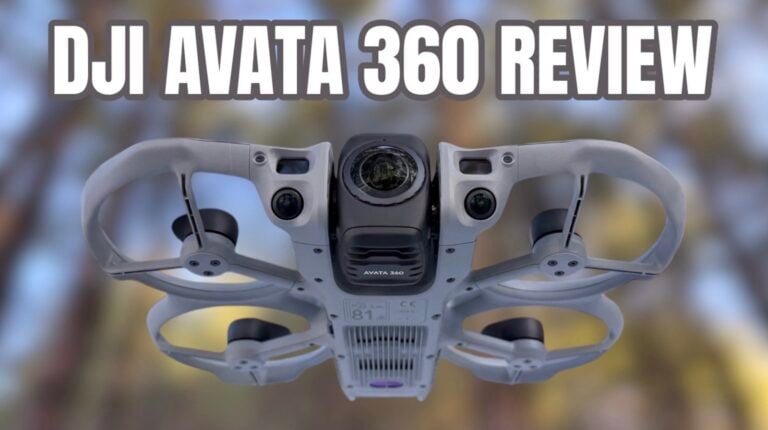
Second, and this might be the most important thing: those lenses are extremely vulnerable. The A1, and I’m assuming all future 360 camera drones, have these super wide-angle lenses that protrude almost like an eyeball. It’s easy to scratch or even break them. When you’re handling your drone, take extreme caution when setting it down on any surface. If the arms are folded in, you’re relatively safe because there are a couple of little feet for it to rest on. But that lens is just a couple millimeters above the surface. Even slight pressure will make that lens touch.
My recommendation: have the landing gear extended at all times. They auto-extend when you turn the drone on and retract when you turn it off, but I would manually extend them anytime you take the drone out of its case. Antigravity does offer a lens replacement kit. My advice: buy it. Buy two of them. I promise you, you will need one.
Third, don’t expect professional video quality right out of the camera. Yes, it records in 8K video, but that’s with two lenses. Each lens is recording 4K, and when you start editing the footage, most of the time you’re cropping in, which reduces your resolution even more. The good news is that with the Antigravity Studio app and its powerful editing, you can export some really amazing looking footage, even in ProRes. But if you’re thinking you’re going to have professional video quality right out of the camera, know that there are more appropriate options for that.
You should get this drone for the pure goosebump-causing experience that people have every time they fly it. I’m telling you, it’s a complete rush. I haven’t been this excited to fly a drone for the sake of flying for quite a few years. The A1 has brought back the pure love of flying drones for me.
Fourth, there are additional steps when editing your footage. Learning how to edit 360 video footage can be a challenge for new users. But after watching just a couple of tutorials like this one, you’ll have no trouble at all.
Setup: Expect To Spend About 3 Hours
When you get the A1, no matter which bundle you choose, the first thing you need to do is unpack everything and charge all your batteries. Don’t try to fly without charging them fully first. While that’s happening, download the Antigravity Studio app on your smartphone and computer.
Once all batteries are charged, power everything on. The drone will prompt you to activate it and update all firmware. Make sure you update each battery’s firmware as well before heading out to fly, or you’ll waste time and battery life in the field.
For me, the entire process took about 2.5 hours to get everything charged, firmware updated, and ready to go. Just expect to set aside almost 3 hours before you can actually fly.
After setup, insert a micro SD card into the drone and into the goggles. They both have internal storage, but it won’t be enough for the drone when recording 8K video. You’re going to need a rather large memory card.
Transporting Your Gear
Antigravity makes a really nice case that everything packs into, but they also include a smaller felt-lined case just for the drone itself. My recommendation: always use this little case for your drone. Don’t just put your drone directly into the bag. Put your drone into the case, then put it into the bag. It’s an extra layer of protection for those lenses, and you can never be too careful with 360 camera lenses.
Your First Flight: Finding The Right Location
When you get out to where you’re going to fly, I recommend a nice wide open space for your very first flight. That goes with any drone, but especially with this one. You’re going to be nervous, especially if you’ve never flown a drone with goggles before. It’s a whole new level of anxiety.
Yes, the A1 does have obstacle avoidance and it works really well, but that still doesn’t remove the uncertainty of flying it for the first time. Eliminate as much stress as you can.
I know this might trigger a few people, but you really should have a visual observer, a second person with you to keep an eye on the drone while you’re flying. Yes, I know just about everybody flies by themselves. But I have to advise you to use that extra set of eyes, especially the first time you fly. Legally, in most countries, you’re required to have a visual observer. Plus, it’s way more fun when you have someone to share this experience with.
Powering Up And Taking Off
Turn everything on by pushing the button once, then tapping it. As the drone powers on, the landing gear will drop down so it’s ready to be set on your landing pad or launch surface.
You can hand launch this drone, but I don’t recommend it. The propellers are so close to the body, and it’s a small drone with too much risk. I’ve been launching it off the back of my pickup. You can launch off your car, but a landing pad is best because the A1 has landing pad recognition that you can enable in settings. When you use return to home, the precision landing will be perfect because it recognizes that landing pad.
Here’s another benefit of the motion controller: I can wear gloves that aren’t touch-sensitive. I don’t have to worry about taking my gloves off to swipe on a screen or maneuver controls. It’s cold out here, and these gloves are going to work just fine.
When I launch this drone, I always watch it without the goggles on first. I want to make sure everything looks okay, that the drone’s not shaking, that everything sounds right. To take off, push up twice on the launch button to turn on the motors, hold onto the controller, let go, and the drone rises to 1.3 meters (4.3 feet). Don’t ask me why that’s the number, but that’s what it does.
Understanding The Motion Controller
As you move the controller, the drone moves. It’s your motion-based controller. The wheel on the controller lets you adjust the drone’s heading by turning it left or right. This comes in really useful when you can’t turn your body to put your goggle view in the same heading as the drone.
Here’s something that won’t make sense until you’ve flown: your goggles view and the drone’s heading are independent of each other. Sometimes you may be flying in one direction while your goggles are looking in a completely different direction. You use the wheel to adjust the yaw and bring the drone back in line with where you’re looking.
Quick controller overview: the record video button, take photo button, and return to home button (hold it down to activate). There’s the wheel for yaw, the power button on the right side, and the menu button you’ll use most often. On the left are two customizable C1 and C2 buttons. You can also switch between sport mode, normal mode, and cinematic mode.
The throttle is just you pulling the trigger, and the drone goes forward. There’s no backwards on this drone because there’s no need. If you need to back up, use the wheel to turn the drone around, fly forward, then turn back to your original position.
The Immersive Experience
One really great thing about these goggles is that they have see-through mode. You can look around like you don’t have goggles on at all. Double tap the button on the left side of the goggles to toggle it. This comes in handy when you need to put your gloves on or get ready to fly.
Once I got up to the full 120 meters (394 feet), I want to show you my favorite thing about this drone. The first time I did this, I honestly almost fell down. I had to catch myself on the side of my vehicle. You can see yourself standing next to your truck, all the beautiful landscape around you, highways, golf courses, everything.
It feels like you’re standing on top of a communications tower and you’re able to look around and see everything. This is amazing. When it’s recording, you’re not only capturing the goggles view, you’re also recording where you’re looking with a high-resolution pilot view. Plus you’re recording from both cameras. When you get into editing, you can choose more stabilized footage and have maximum flexibility.
This is probably the 25th time I’ve flown this drone, and I still get a rush every single time. It’s definitely one of the most fun things you’ll ever do.
Key Flight Concepts
It takes some time to get used to realizing that you don’t have to be facing in the direction that the drone is flying. You have the flexibility and freedom to look around and see the world around you, no matter which way the drone is going. That is the experience that really sells this drone.
Being able to immerse yourself in the flight and feel like you’re up in the air flying around, yet you’re still safe on the ground. That’s the biggest takeaway.
When you’re done flying, I like to hit the return to home button and let it get close to where I was. It’s easier than trying to manually line everything up. The A1 will find its launch point, lower the landing gear right before it gets to the ground, and land softly. I know some people don’t like return to home because they’re used to typical GPS camera drones, but I think you should use it with this one. It just makes things easier.
This drone handles wind really well. Don’t worry about flying in windy conditions because it is really, really good. I only started getting strong wind warnings at around 100 meters (328 feet).
Editing Your 360 Footage In Antigravity Studio
One of the most common pain points for 360 camera footage is that you have to do a few extra steps when editing. Your camera captures 360 degrees of everything around you, so you need to go into the software, import the video file, and choose your framing by cropping in and positioning the view. It sounds intimidating, but once you do it just once or twice, it’s actually not that hard.
You can use the app on your phone, but I think the desktop software is much more powerful and easier for this kind of editing. Download Antigravity Studio for desktop, insert your micro SD card into your computer, transfer files to whatever folder you want, then import them into the software.
To position your view in the viewfinder, hold down your left mouse button and drag around the screen. You can see all the way around, up, down, everywhere. The software captured everything, and you need to decide what to focus on. Do you want the evergreens as the drone flies away? The train trestle? As the drone moves forward, it brings new subjects into view. You have so many options for how creative you want to get. You can show multiple angles from each viewpoint, limited only by your imagination.
Working With Keyframes
On the bottom is your playhead. Move it around to go through your video file. Use the “make start point” and “make end point” buttons to trim your footage to just the section you want to work with.
To change viewpoints in 360 footage, you use keyframes. Click the plus button to add a keyframe, which locks in your current position. From there, you can adjust your angle of view:
- Linear: Regular straight viewpoint
- Dewarp: Spreads out slightly while keeping perspective straight
- Ultra: Spreads out edges more
- Mega view: Super wide view with some curvature distortion
- Tiny Planet: A fun creative effect
I usually go with Dewarp because it’s a little wider angle and I like how it looks. The distortion control slider goes from zero (normal straight view) to maximum wide angle. I leave it around 35 for a good balance.
Quick view buttons let you instantly switch between front view, tail view, port side, starboard, and overhead. Move the playhead forward, adjust your view, add another keyframe, and the software will smoothly transition between them. Play with the timing to get smooth transitions.
Color And Export Settings
For color editing, I always recommend choosing “color plus” and adjusting intensity from 0 to 100%. At 100%, it’s usually too much. Look at the sky, and you’ll see banding, which is common with 360 footage. I usually leave the strength around 30 to 40% depending on the sky and colors in the video.
For export, you can choose H.264, H.265, or ProRes 422 formats. I set the bitrate to 200 every time. If you have the computing power, export in ProRes 422 LT. Full ProRes creates files around 3 GB for a short clip, while 422 LT is about 2 GB. You really don’t need full 422 unless you’re showing this on a big screen.
Why This Drone Matters To Me
Pretty much everybody watching this right now has never done this before. My goal with this drone is to teach you as much as I can about it. I’m trying to get back to the basics of this channel, back to 2017 when I started it. My goal was to help people understand how to fly their drones and get the most out of them.
Over the years, I’ve shifted toward reviews, but I’ve really missed the tutorial process. This drone has brought that back for me. It’s made flying drones so much more fun again, and I love showing you guys how to use it.
I have a playlist on my YouTube channel with all my A1 videos. I’m going to continue making tutorials, going through all the flight modes, showing you how to use tracking, waypoints, and intelligent flight modes. We’re going to have a lot of fun with this drone.
I want you to have all the information you need before making a purchasing decision. But if you’re ready to buy, links are in the video description, and using those links helps the channel and helps me continue making videos like this.
Thanks for watching the video. I hope you enjoyed it. Click on the thumbs up if I was able to give you anything of value today. Have a great day, and as always, fly safe and fly smart.
Watch more drone reviews and tutorials from Russ at 51 Drones on YouTube.
Discover more from DroneXL.co
Subscribe to get the latest posts sent to your email.
Check out our Classic Line of T-Shirts, Polos, Hoodies and more in our new store today!

MAKE YOUR VOICE HEARD
Proposed legislation threatens your ability to use drones for fun, work, and safety. The Drone Advocacy Alliance is fighting to ensure your voice is heard in these critical policy discussions.Join us and tell your elected officials to protect your right to fly.

Get your Part 107 Certificate
Pass the Part 107 test and take to the skies with the Pilot Institute. We have helped thousands of people become airplane and commercial drone pilots. Our courses are designed by industry experts to help you pass FAA tests and achieve your dreams.

Copyright © DroneXL.co 2026. All rights reserved. The content, images, and intellectual property on this website are protected by copyright law. Reproduction or distribution of any material without prior written permission from DroneXL.co is strictly prohibited. For permissions and inquiries, please contact us first. DroneXL.co is a proud partner of the Drone Advocacy Alliance. Be sure to check out DroneXL's sister site, EVXL.co, for all the latest news on electric vehicles.
FTC: DroneXL.co is an Amazon Associate and uses affiliate links that can generate income from qualifying purchases. We do not sell, share, rent out, or spam your email.