DJI Avata 360 beginner’s guide: Getting ready for your first flight
Check out the Best Deals on Amazon for DJI Drones today!
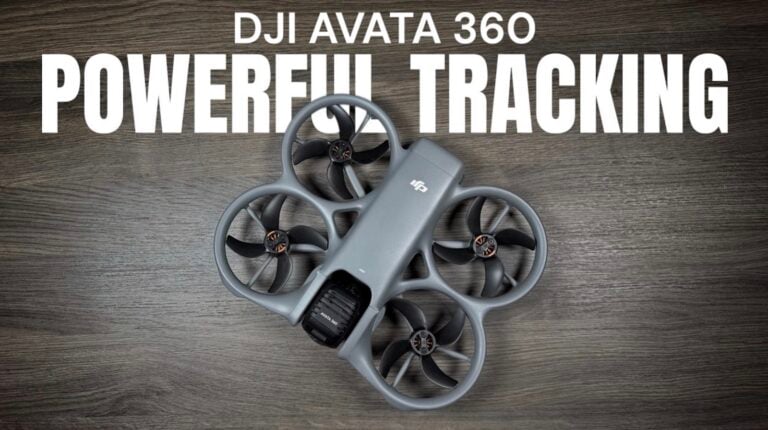
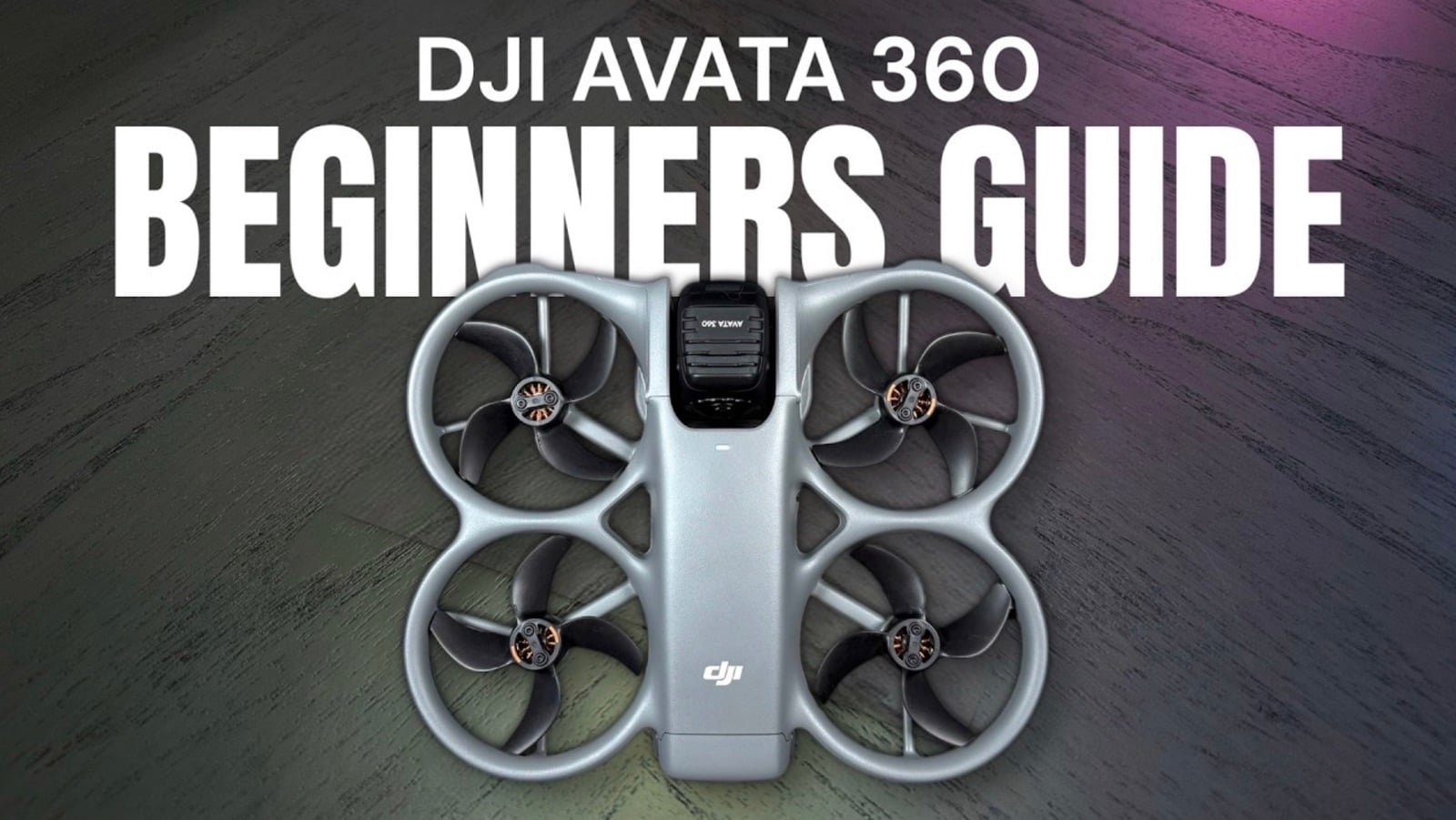
Good day folks. Shawn here from Air Photography. So this is my beginner’s guide for the brand new DJI Avata 360. This beginner’s guide is designed for those who have never flown a drone before. We’re going to help you get familiarized with the hardware, the software, and the basic functionality of the drone to help you prepare for your very first flight.
The Avata 360 is a really interesting drone in the fact that it can capture a spherical video in every direction that allows you to reframe your video later on when you’re at home. You’ll be able to export multiple different angles from one flight. Some people might be on the fence about whether a 360 drone is the right choice for them. They may even perhaps think it might be a little bit too complicated and difficult to edit the 360 footage. But DJI has a lot of built-in tools to make it really easy — tools that really don’t require you to do any type of editing. And we’re going to take a look at that later on in this video.
I also want to mention that the Avata 360 is going to be available in several different packages. There are a few different ways in which we can fly it. First off, we can fly it with a more traditional controller such as the RC2, but you can also fly the Avata 360 with goggles and the Motion 3 controller for a more FPV style immersive flight.
In this video, we’re going to primarily stick to flying the Avata 360 with the RC2, just because I don’t want this video to get too complicated, especially since not everybody’s going to be flying with goggles. I’m going to separate them into two videos. This one is focused on the RC2, and then afterwards, I’m going to release a video that’s dedicated to flying the Avata 360 with the Motion 3 controller and a set of goggles.
DJI Avata 360 packages and what’s included
Before we get too far into things, let’s go ahead and talk about some of the different packages that you can purchase when it comes to the Avata 360. If you already own a compatible controller or goggles, you can purchase just the drone only. Essentially, you’re going to get just the drone, a charging cable, a little bit of documentation, and one battery, which will be pre-installed in the drone when you get it.
Another package you’ll be able to purchase is one with a controller, and again, it comes with the same equipment, except this time you are going to get a controller with it if you don’t have a compatible controller.
The next package is the Fly More Combo. With it, you’re going to get the drone, the controller, and a total of three batteries. So with this package, you’re going to get two spares. You’re going to get a charging hub for charging up the batteries. And on top of that, you’re also going to get a landing pad and a carrying case.
On top of that, they have a Motion Fly More Combo. Essentially, again, you’re going to get everything the same, except instead of a controller, you’re going to get a set of goggles and the Motion 3 controller.
It doesn’t matter what package you purchase, you can always add existing equipment later on. For example, if you get a combo with the RC2, you can always add goggles and the Motion 3 controller later on. And same with spare batteries and the charging hub — those can be purchased later on as well.
Taking a closer look at the drone
Let’s go ahead and take a closer look around the equipment. We’ll start with the drone. When you unpackage it, you’re going to notice it’s going to have a gimbal guard installed on the front. That’s going to protect the gimbal and the two lenses. It’s really important to make sure you have that installed when you put this in a bag or a backpack. That will help keep those lenses protected. To remove it, all you have to do is grasp the top and the bottom and just slide it forward and it will come right off. And when it goes back on, it can only go on one way. You can see there’s a slight angle and you want the shortest part down at the bottom.
Here is the main camera and gimbal. Depending on whether you’re filming in single lens mode or 360 mode, it will flip around. When you’re filming in 360 mode, it’s going to flip up so there’s a camera at the top and a camera at the bottom. When you’re filming in single lens mode, it’s going to lock with just a camera facing forward.
On the front, we have some sensors. We have obstacle avoidance sensors near the bottom and LiDAR sensors. Those will help prevent collisions while you’re flying. But you’re going to notice with the Avata 360, there’s no sensors at the back like more traditional drones. And that’s because when you’re flying in 360 mode, it can actually utilize the 360 camera — the lens at the top and the bottom — to help with obstacle avoidance in a complete 360 degrees. So if you’re flying backwards or sideways, even though there’s no dedicated sensors, it will utilize that camera to help you prevent running into obstacles.
At the side, we have a door. Underneath that is a USB-C port, and that’s also where we install our memory, which we’re going to talk a little bit more about coming up in a minute.
At the back, we have our battery installed. When you purchase it, one battery will already be pre-installed in the drone. To remove the battery, there’s a button on either side of it. You can just pull it right out. While the battery is out, you’re going to notice a button on the back of the battery. That’s actually the power button — how we can power the drone on. But when the battery is not installed, you can just tap on it and that’s going to show you how much power is currently in the battery. To reinstall the battery, you just want that hanging part down near the bottom and just push it in until it clicks.
The Avata 360 features the DJI O4 Plus transmission system. That means it’s going to have a rating of about 20 km. Obviously, you’re never going to fly out 20 km, but it just has a really good solid connection. It’s capable of speeds when flying in Sport Mode of 18 m/s, and it can handle a wind rating of level five. So it’s a very capable drone.
Getting to know the RC2 controller
Let’s take a quick look around the controller. At the front here at the top, these are our antennas and they fold out when you’re ready to fly. Just as a rule of thumb, when flying, you want the flat surface of the antenna facing the drone. You don’t want to point the antennas directly at the drone. If the drone’s out in front of you, it’s best to have them angled so the flat part is facing the drone. That’s going to give you the best reception.
When you get your controller, the sticks are going to be stored in the back. When you put the controller in a bag, it’s a good idea to remove them. That’s going to help prevent the gimbals from being damaged. When you’re ready to fly, you just pull them out. They’re identical, so it doesn’t matter what side you put them on, and they just screw in on either side.
Here we have our two gimbals. This is how we control and maneuver the drone. On the side, we have a power button. While it’s off, you can do a quick press on the button and that’ll show you how much power is in the controller.
In the middle, we have our mode selector. We have three different modes on the Avata 360: Cine Mode, Normal Mode, and Sport Mode. Cine Mode is the slowest mode — it’s for capturing nice slow cinematic footage. Normal Mode for normal flight. And Sport Mode if you want to fly a little bit faster. It’s just a toggle switch that you can put back and forth.
Beside that we have a Return to Home button. It’s also a pause button that can initiate a return to home and it can also pause if you’re out doing an activity and the drone is flying autonomously.
We have our preview screen here. This is a touch screen. We can use that to adjust settings. At the bottom, we have a USB-C port for transferring data and also for charging. Beside that, we have a memory card slot. The controller itself has some built-in memory. You don’t really need to put a memory card into the controller. All the footage is going to be stored on the drone. Essentially, that memory card is for those who are going to be doing a lot of screen recordings and screenshots, and you may end up running out of storage on the internal storage.
At the top of the controller, on one side we have a shutter button that’s going to start and stop recording. On the other side, we have a photo button that will snap a photo. Below those two buttons, we have dials that control the angle and rotation of the gimbal. And on the back, we have two customizable buttons where you can add shortcuts right within the software.
Memory cards and storage
The Avata 360 does come with some built-in memory. It comes with 42 GB of built-in storage. Now, 42 GB is not a lot, so I would highly recommend purchasing a memory card — a nice large memory card, something like a 128 GB card, or better yet, a 256 GB card. That internal memory is good if you happen to fill up your memory card while you’re out flying or you forget a memory card, but I wouldn’t rely totally on it. That will actually fill up fairly quickly while you’re out filming in 360.
There are lots of memory cards available. The brand that I like to use is SanDisk. This is the Extreme Pro, a 256 GB card. To install the memory, we’re going to open up that side door. That’s our USB-C port, but it’s also our memory card slot. To install it, we’re going to have the graphic side facing the bottom of the drone. It just slides in until it clicks. And then you always want to make sure once you’ve installed memory or had that door open that you close it just to make sure it doesn’t cause any problems.
Charging the Avata 360
When it comes to charging up the Avata 360, there’s a couple different ways we can do it. You will notice no matter what package you purchased, it did come with a charging cable, but we didn’t get a charging brick with it. Most devices nowadays do not come with charging bricks. Many people are already going to have a compatible charger. We’re going to use a USB-C charger, the kind you would use to charge up your phone or tablet.
If you don’t have one, they can be purchased. DJI does sell a 65-watt charger that works beautifully with a kit like this. And of course, there are many third-party ones such as Anker.
Depending on what package you have, how you charge it will be a little bit different. If you purchased just the basic kit or the drone only, you’ll charge the batteries directly in the drone. If you purchased the Fly More Combo, you can use the charging hub to charge up your batteries.
To charge the battery in the drone, we’re going to open up that side door and plug the USB-C cable directly into the side. At the back of the drone, you’re going to notice the lights will start to illuminate. They’re flashing, signifying that the drone is charging.
If you have the Fly More kit and the charging hub, you just install the batteries into the charging hub. You don’t have to have all three batteries installed to use it. You can have one, two, or all three. When the batteries are in the charging hub, you can press on each individual one to see what the power is, or you can press the button on the side of the unit — that will light up all of them so you can get a quick visual reference of what the power is.
When you’re ready to charge, just plug the USB-C cable into the port. As long as you’re using something like a 65-watt charger, you’ll be able to charge all three batteries at the same time. If you’re using a lower wattage charger, like a 30-watt, then it may only charge one battery at a time.
Another interesting thing about the charging hub is that it can function as a power bank. If you’re out filming and your phone is getting low, you can actually plug it into the USB-C port and transfer power from the batteries over to your device.
They also have a consolidation feature. If each battery just has a little bit of charge — not really enough for a flight — you can press and hold the power button. It’s going to scan the batteries and move all remaining power to one battery. That could potentially give you another flight. So that’s another nice little feature of the charging hub.
For charging the controller, you take that same cable and just plug it into the bottom USB-C port. You’ll see the LED lights illuminate and flash, signifying that it is charging.
Replacement lenses
Because of the nature of 360 lenses, you can see how they really protrude. There might come a time when somehow that gets damaged — if you’ve flown into an obstacle, hit a tree, or perhaps they might get scratched. DJI does sell a lens replacement kit. It has all the tools needed inside to essentially unscrew the lens and replace the damaged lens. This will be something that can be purchased separately.
Activation and firmware updates
Before we can fly, there are a few things that we need to do first. Most notably, the equipment needs to be activated, and there’s going to be some firmware that needs to be updated.
What we’re going to do is power on the aircraft and the controller. When you purchase it brand new as a kit, your drone will already be paired to the controller. If you’ve purchased the drone only because you already had a controller, you will need to pair the two together first.
Both the controller and the drone require a double press — a quick press, and then a long press — to power on. When you first power it on, there are going to be a few things you need to do. You’re going to have to fill out some information on the screen. It’s going to ask you your time zone, the country in which you live, and at some point, it’s going to ask you to log in with your DJI account. If you don’t have a DJI account, there’s an option for you to create one. It will also ask you to connect to your home Wi-Fi. Once that is done, you’re going to come to a screen where it’s going to ask you to activate the aircraft. Just follow along until you get a confirmation that the aircraft has been successfully activated.
Once that is done, you should be presented with a message that there is firmware available. You want to make sure you have it connected to your home Wi-Fi, and then it’s going to go ahead and download. Sometimes the downloads can take a little while — sometimes they come in really quickly, other times they can take 10 to 15 minutes. During the installation, the aircraft will restart and the controller will restart, and then you’re left with a message that says device firmware updated.
Understanding the two filming modes
With the Avata 360, we have two main filming modes: Single Lens Mode and 360 Degree Mode. The majority of the time you’re probably going to be wanting to film in 360 mode, because that’s where all the features and capabilities are available. When you’re filming in single lens mode, primarily all you can do is capture video.
Another important thing is that you only have 360 degree obstacle avoidance while filming in 360 mode. That’s because the camera has to be flipped up in 360 mode in order to be able to detect obstacles behind it and to the side.
A tour of the DJI Fly app interface
Let me give you a brief rundown of the interface and where all the controls are. When you power both the controller and the drone on, it’s going to come right to the flight preview screen. This is what we’re going to be flying with. There is a home screen on the controller and we can get to it by tapping the little house icon at the top left hand side. In there we can adjust some settings for the controller and tap on profile to get some information about our account and the drones we have attached to it. To get to the flight screen, all you have to simply do is tap on Go Fly.
Looking around the screen, there’s some really important information. At the top left, that is our home button. Below that, we have a button — can’t do anything now because we’re not in the air, but if we tap on that while flying, it allows us to start tracking. Anything the drone can detect that can be tracked will turn to a little plus sign that we can tap on to start tracking.
Below that we have a takeoff button, which also serves as a landing button and a return to home button depending on where we are in the air. Down at the very bottom left hand side, we have a map icon. We can tap on that for a preview. Once we’re outside and the drone connects to satellites, that will update to our precise location. We can make it bigger by tapping on it for a full view of the map — a nice way to get a preview of the area you’re flying in.
There are a couple other tools built into that bottom left area. It’s kind of a dock system. We have the map showing. If we swipe on it, it brings up a compass that gives information like the angle of the aircraft and the position of the drone compared to how we’re standing. Swipe again, and that brings up Vision Assist. As soon as we take off, that’s going to give us a visual preview of the direction we’re flying in. That can be really handy if you’re flying backwards and can’t see what’s coming up — it’ll show you what’s behind you.
Beside that, we have important information showing altitude, distance, and flight speed. It’s important to keep an eye on that to make sure you’re following regulations and not flying higher than what is allowed in your country.
Moving to the bottom right hand side, this is all our camera controls. Right now it’s set to auto. It shows our frame rate, resolution, and how much storage we have on the memory card. We can tap on it and switch back and forth between the memory card and the built-in memory. Same with frame rate and resolution — we can tap and adjust. Ideally, you do want to keep it in 8K. That is going to give you the best quality video.
The exposure value button allows us to brighten or darken the image if you think it’s a little overexposed or underexposed. The drones do a pretty good job with exposure, so most of the time you don’t need to adjust that.
You can get really creative with these drones. It has all the settings built in where you can adjust your white balance and shutter speed. To do so, we put it into Pro Mode. That gives us a lot more information — white balance, shutter speed, ISO — and we can tap on them and put it into manual mode and adjust things manually.
On the right hand side in the middle, we have a play button. That brings up a gallery of all the content stored on the drone. You’ll notice some are in a circle and some are square. The ones in a circle were filmed in 360 mode and the square ones were filmed in single lens mode.
Above that is our record button. Above that, you can see a little film icon with a 360 sphere, signifying that we’re in video mode, 360 degree video mode. We can tap on that and switch between 360 degree mode and single lens mode. In single lens mode, the only option is video — you can’t take photos. But in 360 degree mode, we get the option for photo, video, and Quick Shots.
At the top right hand side, we have three dots. If we tap on them, that brings up all of our settings. At the top, the first icon is our satellite count. Right now I’m indoors, so it’s not going to connect. But once you’re outdoors, it will connect automatically very quickly — usually within a minute or so, you’ll have anywhere from 20 to 30 satellites. It’s a good idea not to take off until you have a good satellite lock, usually at least 15 to 20.
The next red icon is our obstacle avoidance indicator. It tells you if obstacle avoidance is enabled or disabled. As soon as you launch the drone, that’ll change color signifying it’s enabled. The next icon is our RC signal strength. As we fly out and there’s interference or obstacles, that strength meter will go down.
Next to that it says 0000 — that is our remaining flight time. Once you put the drone up, that’s going to tell you roughly how much flight time you have left. And beside that, we have a percentage graph showing battery level. At the top, it gives us our status. If there are any errors with your drone, they will appear there. And there are safety settings where we can adjust our max flight altitude and max distance.
Your first test flight
Now we’re going to go out for a little bit of a test flight and I’m going to demonstrate a few things for you. Before you go for your first flight, it’s a good idea to pick a nice wide open location if you’ve never flown a drone before. It just takes some of the worry out. Although it does have obstacle avoidance, it’s just a good idea to have a nice open area, a place with not a lot of people or things you can run into.
It’s very important to make sure you understand the rules and regulations in the country in which you live before you go for a first flight. You want to make sure you understand them fully — whether you need a license or your aircraft has to be registered. It’s also a good idea to download an app that will show you where you can and cannot fly. For example, here in Canada, I use an app called Drone Pilot Canada. Every country has one available, so you’ll just have to do a little bit of searching to see what app is best for your area.
With the Avata 360, because it sits so low to the ground, it’s a really good idea to use a landing pad or some other type of hard surface. If you’re taking off from concrete or dry asphalt, that would be fine as well. If you bought the Fly More Combo, it comes with a landing pad. If you don’t have one, you can purchase them fairly inexpensively on places like Amazon.
Before you take off, you should make sure you have good satellite connectivity. You want to make sure you’re connected to satellites for a few reasons. First of all, it’s going to set a home point — so if you happen to get disconnected or there’s a problem, the drone knows where to come back to. It also helps keep the drone stable up in the air, holding it in position, especially on a windy day. You can check to see if there’s a home point set by tapping your map at the bottom left hand side. You’ll see a big yellow H, meaning a home point has been set.
To take off, the easiest way is by using the launch button on the left hand side. When you tap on it, you get a launch box and all you have to do is press and hold. The drone will automatically take off and hover, held in place by GPS.
Basic flight controls
To maneuver the drone, we use the sticks on the front. Each stick does two maneuvers. On the right stick, if you push forward, the drone moves forward. Pull back, and the drone flies in reverse towards you. Push the stick left, the drone moves left. Push right, it moves right.
The left stick does two maneuvers as well. Press up, and the drone raises altitude. Pull down, and the altitude lowers. The other maneuver is spinning, or yaw. Press to the right, the drone spins right. Pull to the left, the drone spins left. As you get comfortable and with more practice, you can combine stick commands to get some really dynamic movements.
One thing I want to point out — when you put it into single lens mode, you’ll notice the horizon goes tilted. That’s because in single lens mode, it only uses FPV style stabilization. As you fly around, the horizon is going to change and mimic that of an FPV flight. If you want nice stable footage, you want to film in 360 mode because then it’s going to be stabilized.
Understanding Return to Home
One thing I do want to show you is Return to Home and how it works, because that’s very important to understand. There are three ways in which Return to Home will initiate.
The first is a failsafe. If the drone gets disconnected because you’ve flown too far or there was some type of interference, then the drone will automatically come back and land on the landing pad or wherever you took off from, usually within a couple of feet. That’s why it’s really important to make sure you have a home point set before you take off.
The second way is a low battery Return to Home. The drone is going to constantly try and calculate how much power it thinks it needs to get back to the home point safely. When it gets down to that level, the drone is going to automatically turn around and come back.
The third way is a manual Return to Home. You can press and hold the Return to Home button on the controller, or you can press and hold the takeoff and land button and tap on Return to Home. The drone will automatically come back, and it gives you a virtual line of the path it’s going to take. It’s really important to keep an eye on that to make sure there are no obstacles. You can cancel it by tapping the red X if you think it’s getting too close to something.
Adjusting zoom, tilt, and roll
While flying the drone in 360, we have some options for zooming — essentially changing the field of view. We can also tilt the camera and roll the camera. To adjust the zoom level, the tilt, and rolling the camera, we use the dials on the controller.
By default, the one on the left hand side will adjust the tilt — so if you want to look down while you’re flying or look up. By default, the one on the right hand side will set the field of view. The zooming and field of view is not super important if you plan on doing 360 reframing later, because that can be done in editing. However, it does become important if you don’t plan on doing any 360 reframing. If you just plan on exporting the footage as you see it on the screen, then setting your field of view and zoom level is extremely important because that’s how it will be exported.
To roll the camera, there is an extra step. We use the right dial, but while using it, we press and hold the C1 button because that changes the functionality of that dial from zooming to rolling. You can go into the settings and adjust the functionality of all these buttons based on personal preference.
Focus Track and intelligent flight features
The Avata 360 also has many intelligent flight features such as Active Track, Spotlight, and Point of Interest. Essentially, it’s packaged into a set of tools called Focus Track.
When you draw a box around a subject you want to track, you get a tool popup with three options: Active Track, Point of Interest, and Spotlight.
Point of Interest allows you to do an orbit around something of interest. It gives you a tool to set the direction and speed of your orbit. While it’s doing the orbit, you can still use the control sticks to adjust things like altitude and distance from the subject. It’s a nice simple tool to get really smooth orbit shots.
The middle tool, which is the default, locks onto a subject and lets you fly around at will while the subject always remains locked in the center. You can fly backwards, forwards, sideways, raise or lower the altitude, and you’re going to get some really dynamic shots with the subject remaining centered. It’s a really powerful tool.
The third tool is Active Track. That’s where the drone will actually fly itself and follow the subject if it’s moving. When you have Active Track selected, you get a new tool down in the bottom left hand side that shows what you’re tracking and the position of the drone. There are two options — you can enable Auto Mode, where the drone does all the work, taking things like aesthetics and composition into consideration, automatically flying around to different positions for different types of shots. The nice thing about Auto Mode is it allows you to focus on your activity while the drone makes all the decisions. Obstacle avoidance stays active while tracking.
If you prefer more control over where the drone is positioned, you can disable Auto Mode and use the dial in the bottom left hand side. There are two rings — drag the drone to the outer ring for a farther shot, drag it to the inner ring for a closer, tighter shot.
Previewing your footage on the controller
If you’ve been out capturing for the day, all the high-definition footage — whether you’re filming in single lens mode or spherical mode — is stored on the memory card on the drone or the internal memory. The RC2 also keeps a low resolution cached version stored on the controller’s internal memory. The nice thing about that is it allows you to go in and preview the content you’ve captured without having to connect to the drone.
To preview, go to your album and click on Aircraft Album. It’s going to list all the footage currently stored in the cached memory of the controller. This is not the high-definition footage — that is stored on the drone. But this allows you to give it a quick preview.
When previewing footage without being connected to the drone, it allows you to only preview the linear footage — basically what was captured on the screen. If you power on the drone and connect, while playing back you can actually pan around to get different views, zoom in and out, and check out all the different angles from the 360 footage.
What’s coming next
That’s essentially it for my beginner’s guide. I do have a part two coming. In part two, we’re going to go over what to do with the footage once you’ve captured it. Because we’re capturing in spherical video, it does need to be brought into the DJI Fly app or the desktop studio so it can be processed and exported as a video you can upload to social media. There are all different tools built into the DJI Fly app to make some really dynamic footage — key framing, AI tools, and for those that don’t even want to do any editing, options that allow you to just export the footage as it was shot.
If you are brand new to drones and the Avata 360, I invite you to subscribe to my channel as we will be covering this drone fully over the coming weeks and months — follow-up reviews, different techniques, specific features, and editing tutorials to help you get the most out of your footage. Hopefully you enjoyed this video and found it had value.
Be sure to check out Air Photography on YouTube for more great drone content. You can also find more articles by Shawn on his DroneXL author page.
Discover more from DroneXL.co
Subscribe to get the latest posts sent to your email.
Check out our Classic Line of T-Shirts, Polos, Hoodies and more in our new store today!

MAKE YOUR VOICE HEARD
Proposed legislation threatens your ability to use drones for fun, work, and safety. The Drone Advocacy Alliance is fighting to ensure your voice is heard in these critical policy discussions.Join us and tell your elected officials to protect your right to fly.

Get your Part 107 Certificate
Pass the Part 107 test and take to the skies with the Pilot Institute. We have helped thousands of people become airplane and commercial drone pilots. Our courses are designed by industry experts to help you pass FAA tests and achieve your dreams.

Copyright © DroneXL.co 2026. All rights reserved. The content, images, and intellectual property on this website are protected by copyright law. Reproduction or distribution of any material without prior written permission from DroneXL.co is strictly prohibited. For permissions and inquiries, please contact us first. DroneXL.co is a proud partner of the Drone Advocacy Alliance. Be sure to check out DroneXL's sister site, EVXL.co, for all the latest news on electric vehicles.
FTC: DroneXL.co is an Amazon Associate and uses affiliate links that can generate income from qualifying purchases. We do not sell, share, rent out, or spam your email.