
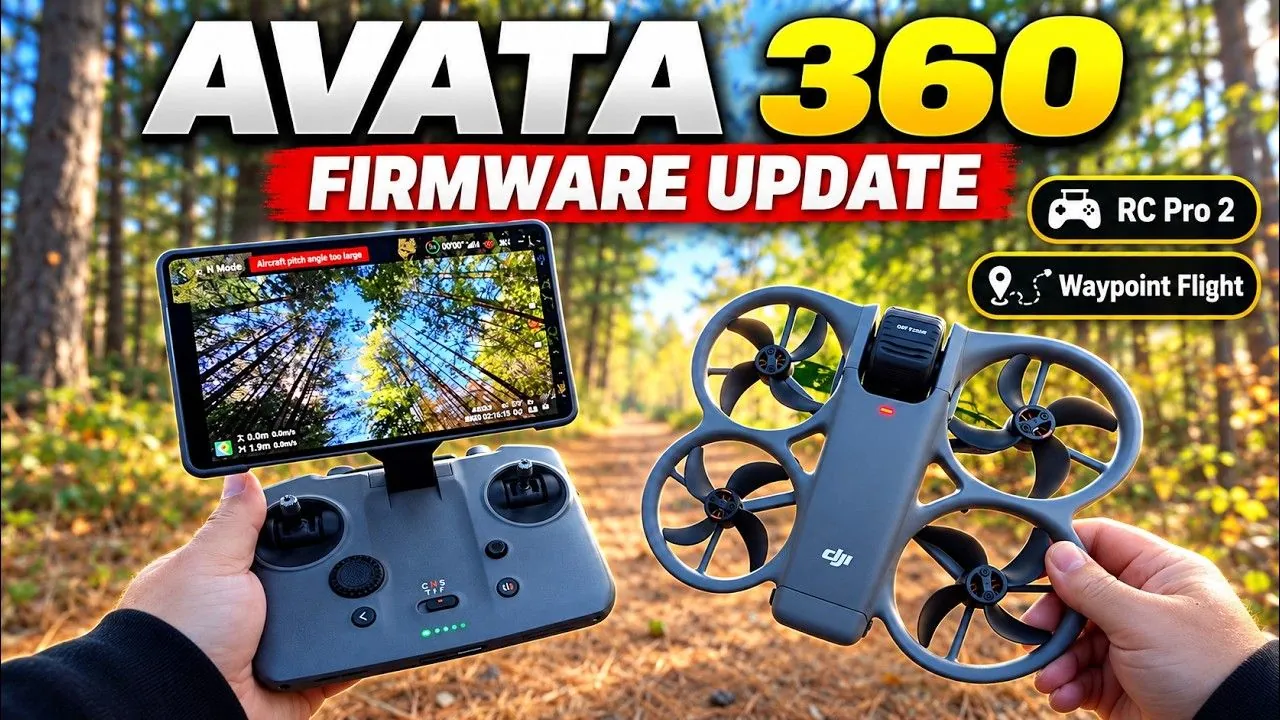
Good day, folks. Shawn here from Air Photography. DJI just released a firmware update for the DJI Avata 360 that makes it compatible with the DJI RC Pro 2. This is a feature a lot of people have been waiting for, and it’s finally available.
I’m really happy about it, because I use my RC Pro 2 a lot for flying, and now I can bring my Avata 360 along and just carry the one controller. DJI also added a few new features for the Avata 360 in the same update, so I took it out over the water for a quick test flight to try them.
Both the RC Pro 2 and the Avata 360 need new firmware
You need two updates. The RC Pro 2 firmware is now version 1.00.0900, adding support for the DJI Avata 360. The Avata 360 moves to version 1.00.0800, adding RC Pro 2 support, waypoint flight, zoom for Focus Track and automatic display switching in Vision Assist.
The automatic orientation switching in Vision Assist was added to some of DJI’s other drones not too long ago, and it’s now available on the Avata 360 as well. If you haven’t linked your controller yet, I covered the process in my guide on how to pair goggles and controllers to the DJI Avata 360. Russ has a full DJI RC Pro 2 review on the controller itself.
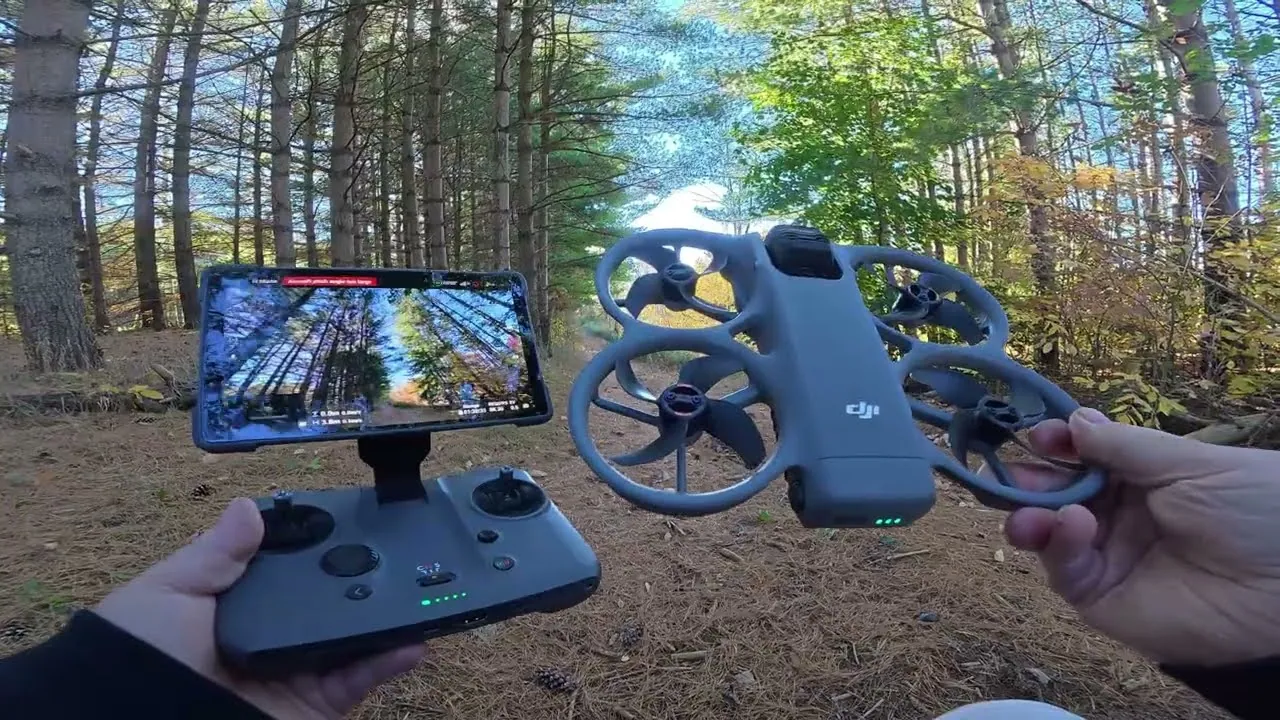
Vision Assist now follows the direction you fly
The first change you’ll notice is that Vision Assist now switches automatically: fly forward and it gives you a forward-facing view, pull the stick back and you get a rear-facing view, and move sideways in either direction to see that side.
It works vertically too. Push up and it’ll show you what’s above the drone. Pull down and it’ll show you what’s below. I tried all of this on a quick flight out over the water, with the fall colors just a little past prime. So that’s a nice new feature. DroneXL has more on Vision Assist on the DJI Mini 5 Pro, one of the drones that got it earlier.
Waypoint missions on the Avata 360 calculate time and distance
Waypoint missions are the big addition a lot of people will be happy with. You bring up the map, add your waypoints, then add a point of interest and link waypoints to it. Hit go, and the drone heads to waypoint one, showing mission time, progress and total distance.
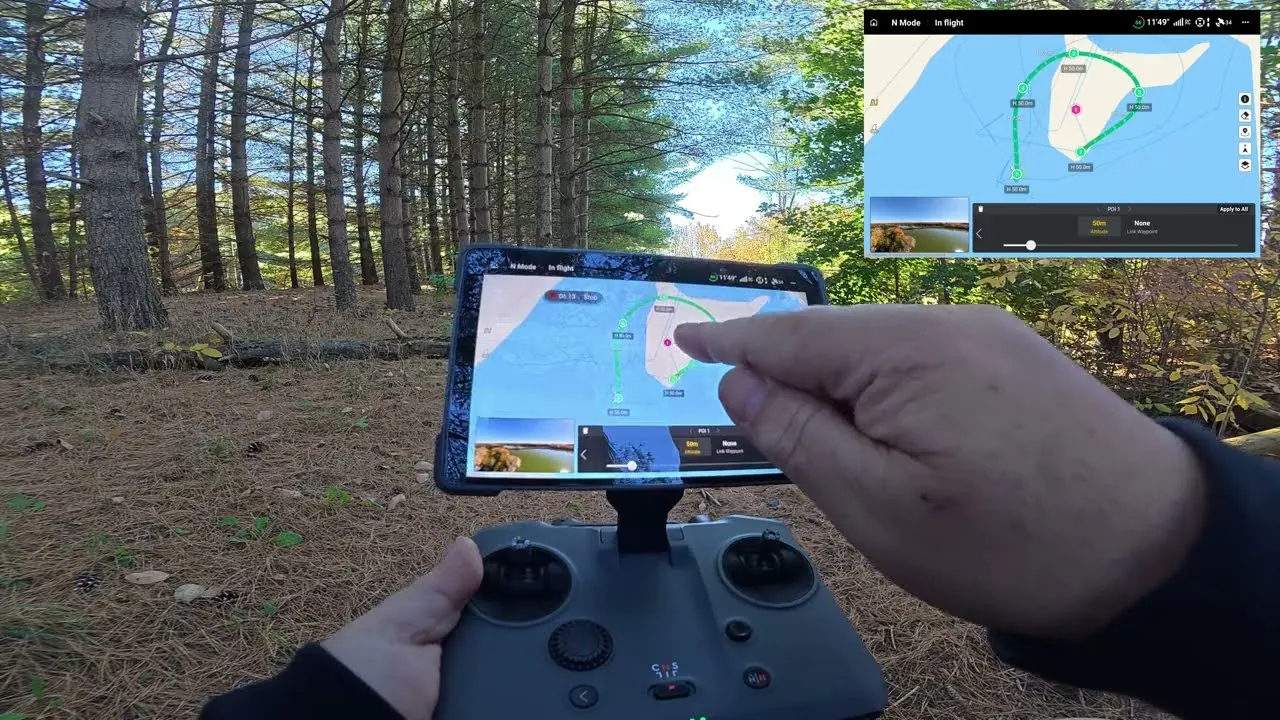
On my test, it calculated a minute and 50 seconds for the mission, showed me I was at waypoint one of five, and gave me the total distance. Because I had a point of interest set in the middle, the drone stayed focused on it as it flew around. If you’re new to waypoints, my DJI Mini 5 Pro waypoint tutorial covers how to build a mission.
Setting a point of interest or the direction of the drone isn’t as important on the Avata 360, because you’re filming in 360 and you can set that later while editing. If you’re using some of the auto export features, it does matter. Those export what you see on the screen, so make sure you set your direction and angle.
I had the mission set to automatically return home when it finished, so once it reached waypoint five I canceled the return to home and kept flying.
Waypoints and 360 video open up creative reframing
Being able to fly the Avata 360 with the RC Pro 2 and to create waypoint missions is going to let you get really creative. That’s because you can do some really interesting reframing of a waypoint flight while you’re filming in 360 with the drone.
I finished by flying over to capture some of the fall colors and headed back with the battery down to 48%. That was just a quick test flight with the DJI Avata 360 and the RC Pro 2, testing out the new waypoint missions.
This article is based on a video from our YouTube partner Shawn from Air Photography. Watch the full video on the Air Photography YouTube channel, and find more of Shawn’s work on his DroneXL author page.


